

Qualify new Salesforce leads
Build a Kovca workflow that starts when a Salesforce lead is created, classifies it, and creates a follow-up task only when the recommended action is a follow-up.
New Salesforce leads mix ready buyers, researchers, support questions, and vendor noise. Someone sorts them by hand before a follow-up task is created. Good leads wait, and junk still gets a call.
This guide builds a workflow that starts when a lead is created, classifies the text the event actually carries, and creates a Salesforce task on that lead only when the recommended action is a follow-up. A researcher, a support question, or a message that is not a sales inquiry does not get that task. You'll start from a template, test it, and activate it on the Salesforce account.
The template already uses the Salesforce New lead trigger and Create task. It does not store a Salesforce account. You choose the account when you activate. Until then the draft saves, and Studio tests simulate Create task.
The New lead sample carries lead_id, name, and lead. Inside lead, the sample has id, name, and created_date. Company, email, phone, and an inquiry are not in that sample, so this template does not map them. Lead Intelligence reads a message built from the name, the lead id, and that lead object. A name is not a buying message. A test of the sample often comes back request_information or manual_review, and no task is created. That is the limit of this event.
If the inquiry, the company, and the timeline arrive on a form, and you want a territory and an owner written to your own system, use Qualify inbound leads and route them to the right sales team. This guide is the one that starts from a lead that already exists in Salesforce.
If a person can work a short lead queue, Salesforce assignment rules and a queue are less machinery than this. The workflow is for the org where new leads sit until someone has time to decide who gets a call.
What you'll build
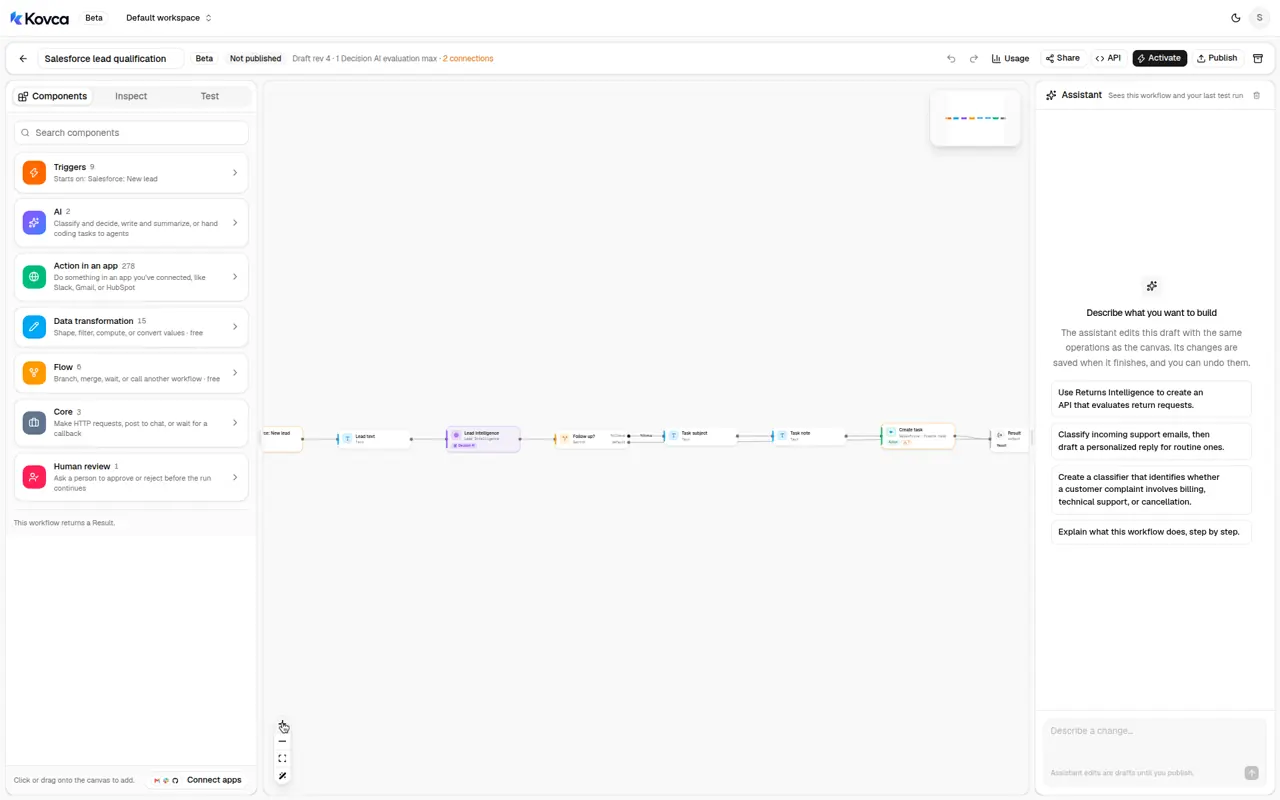 Salesforce New lead, Lead text, Lead Intelligence, then a switch into Task subject, Task note, and Create task.
| Step | Node | What it does |
|---|---|---|
| Input | Salesforce: New lead (salesforce/new_lead) | Starts the workflow. The event fields are lead_id, name, and lead. |
| Lead text | Text | Builds the message from the name, the lead id, and the lead object. |
| Lead Intelligence | Decision AI | Classifies that message. Returns qualification, recommended_action, and missing_information. |
| Follow up? | Switch | followup when recommended_action is prioritize_followup or standard_followup. Everything else is default. |
| Task subject | Text | On the follow-up branch. The task subject, from the name. |
| Task note | Text | The task description, from the lead id and the classification. |
| Create task | Salesforce Create task (action:salesforce/create_task@1) | Creates the task on the lead. Sent once. |
| Output | Output | Returns the classification, the route, and whether the task was created. |
The default branch goes straight to Output. A lead that is not a follow-up does not get a task. Salesforce also has New or updated opportunity. This workflow does not use it, and it does not update an opportunity.
Create contact is a separate Salesforce action. This template does not use it. The lead already exists, and Create contact needs a last name. The event's name is one string. The sample lead object does not include a last name, an email, or an account id.
Build it in the Studio
1Start from the template
Click Use this template above, or open Salesforce lead qualification in Workflows.
The draft opens on the canvas. The components library is on the left. Triggers, AI, Action in an app, Data transformation, Flow, Core, and Human review are the groups. Salesforce is under Triggers and under Action in an app.
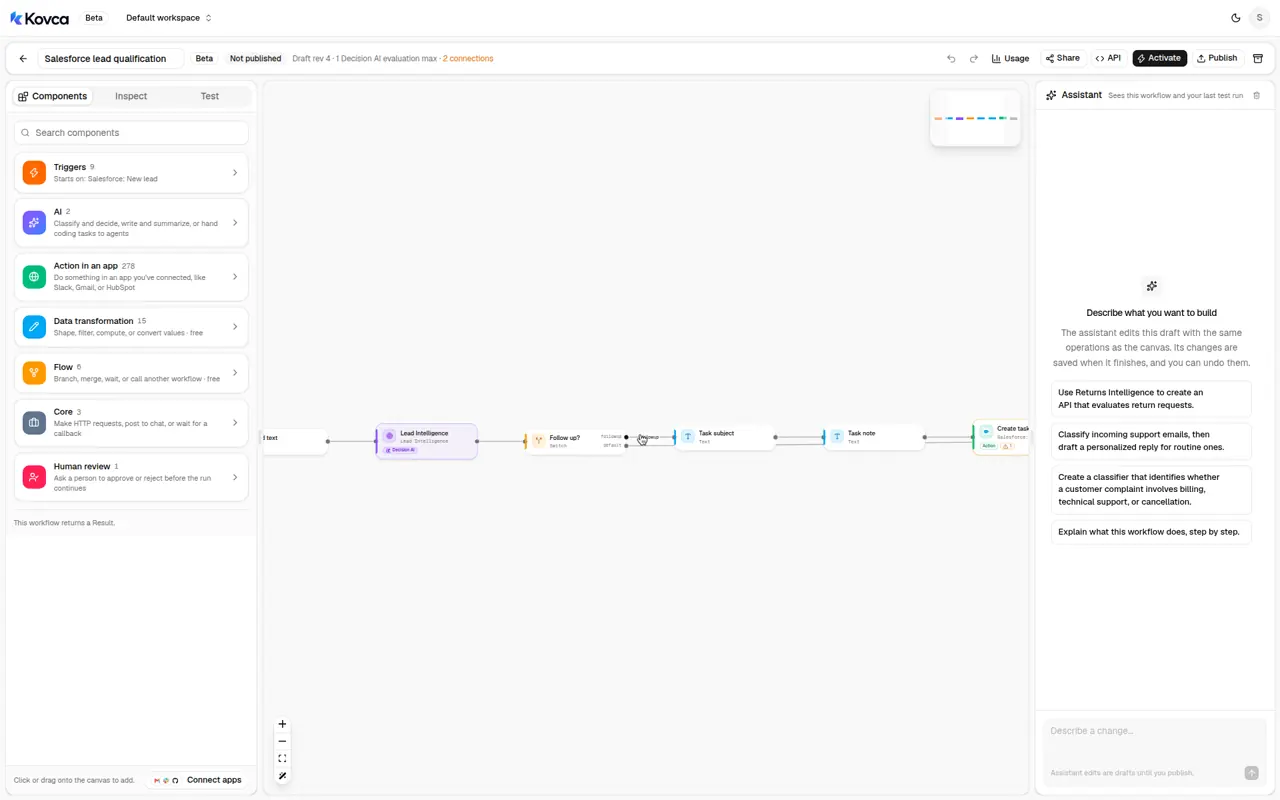 The library home. Salesforce is inside Triggers and Action in an app.
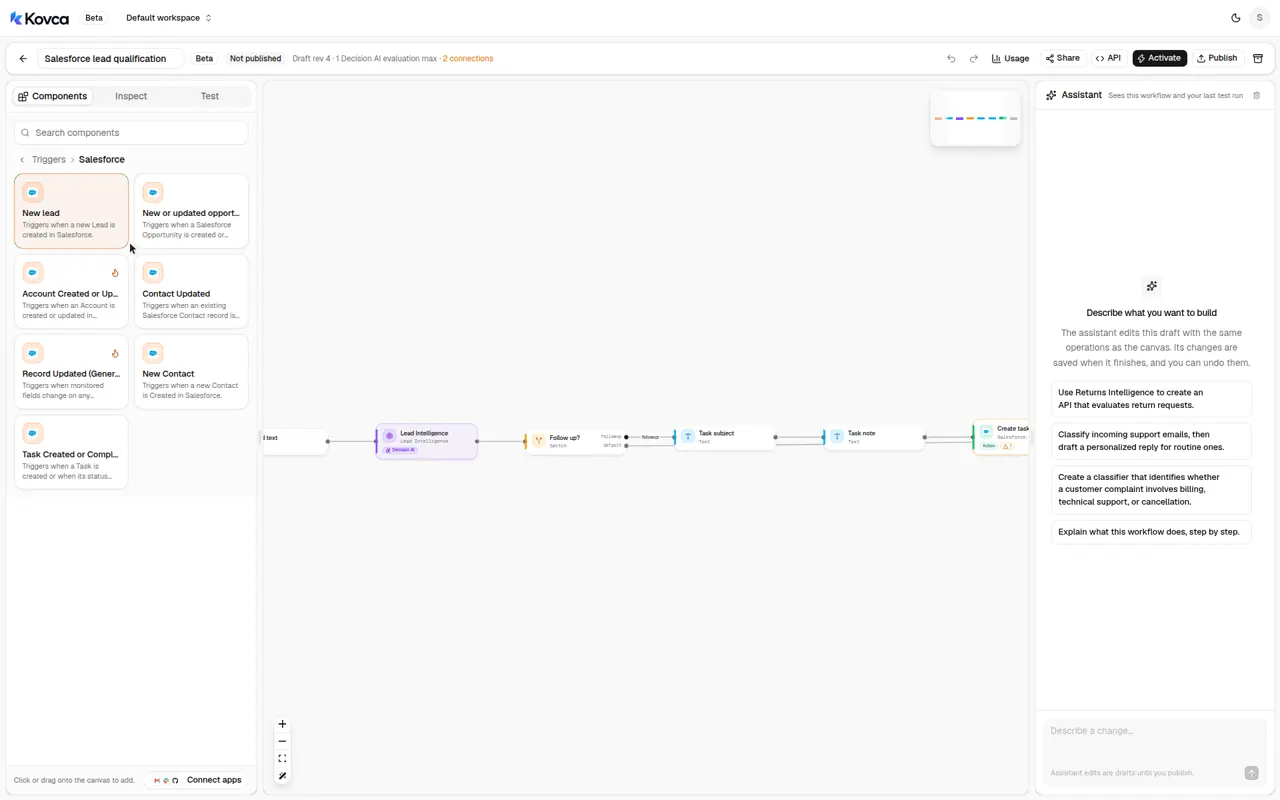 New lead is one Salesforce trigger, next to New or updated opportunity.
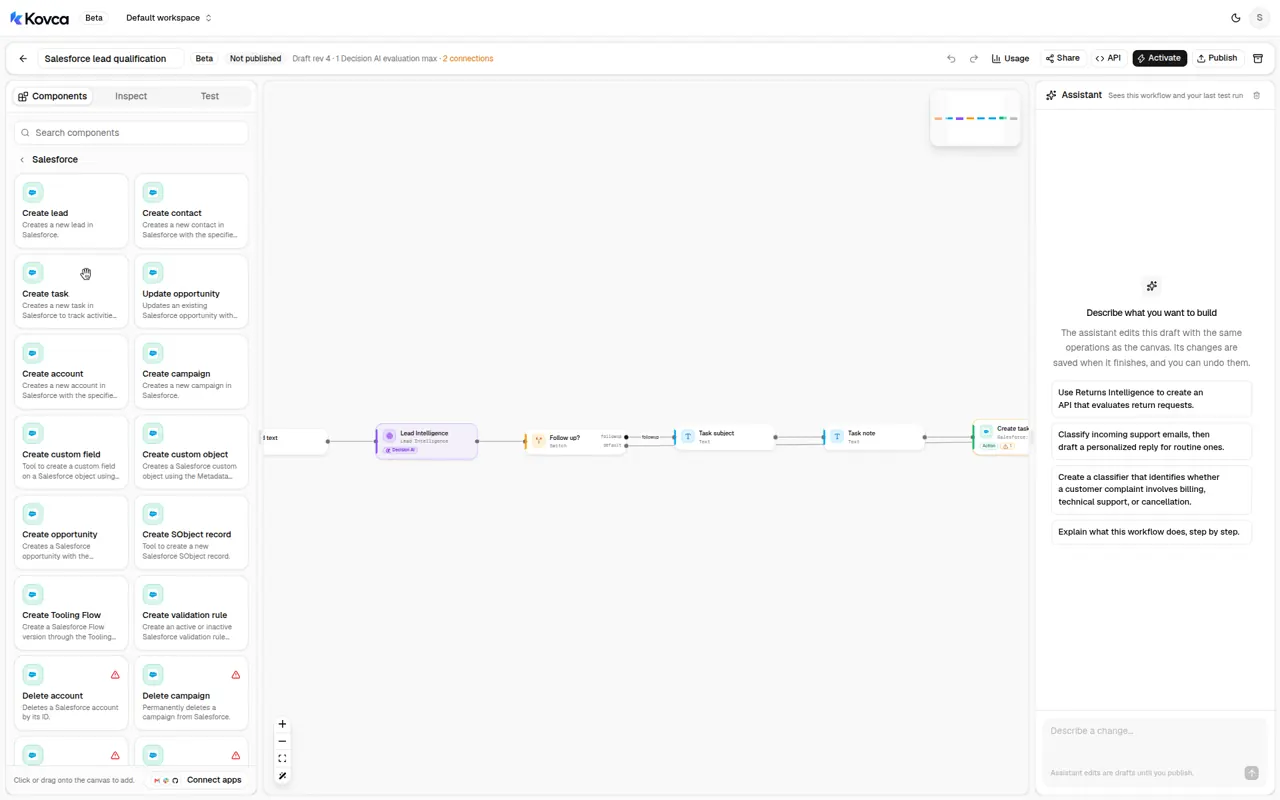 Salesforce's actions include Create lead, Create contact, Create task, and Update opportunity.
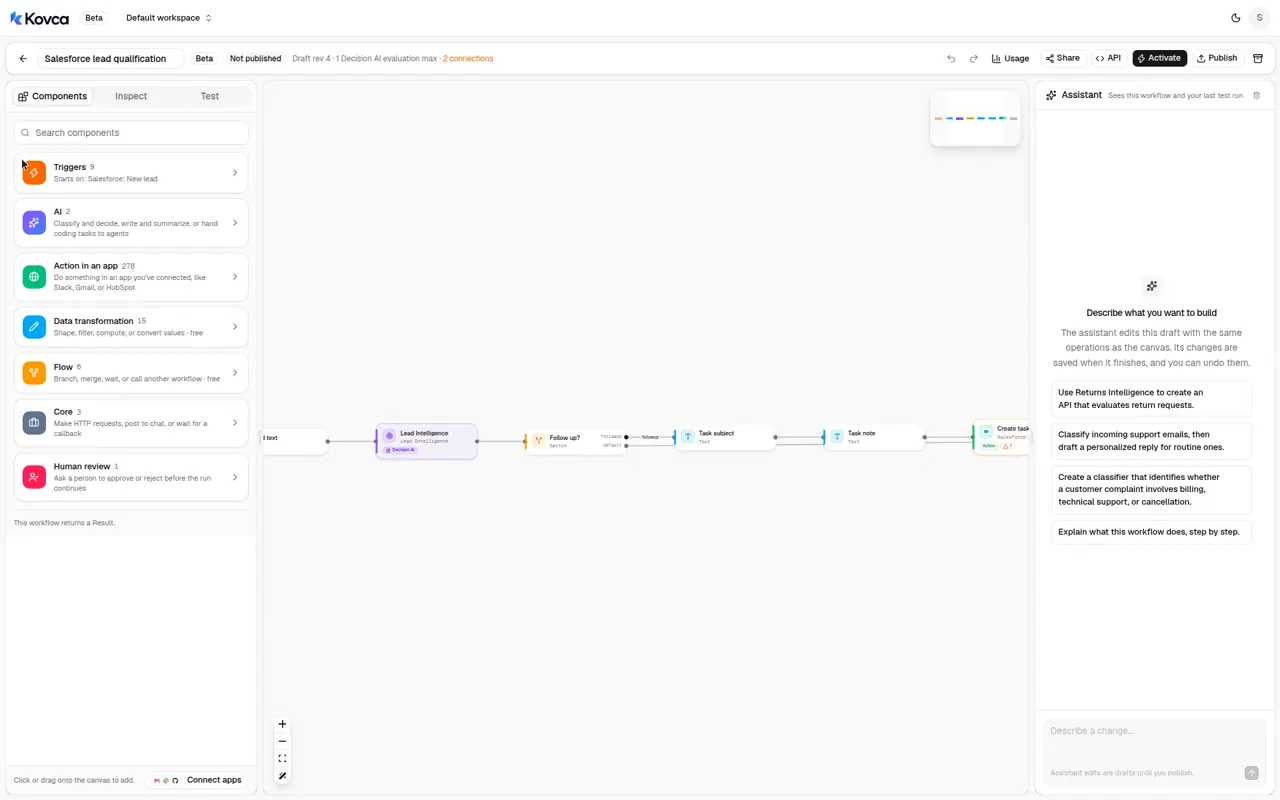 The draft is not callable until you publish and activate it. The Salesforce account is still to choose.
2The workflow starts from a new lead
Select the input step. It is Salesforce: New lead, not an API request. The account line asks you to connect Salesforce. Leave it empty while you test.
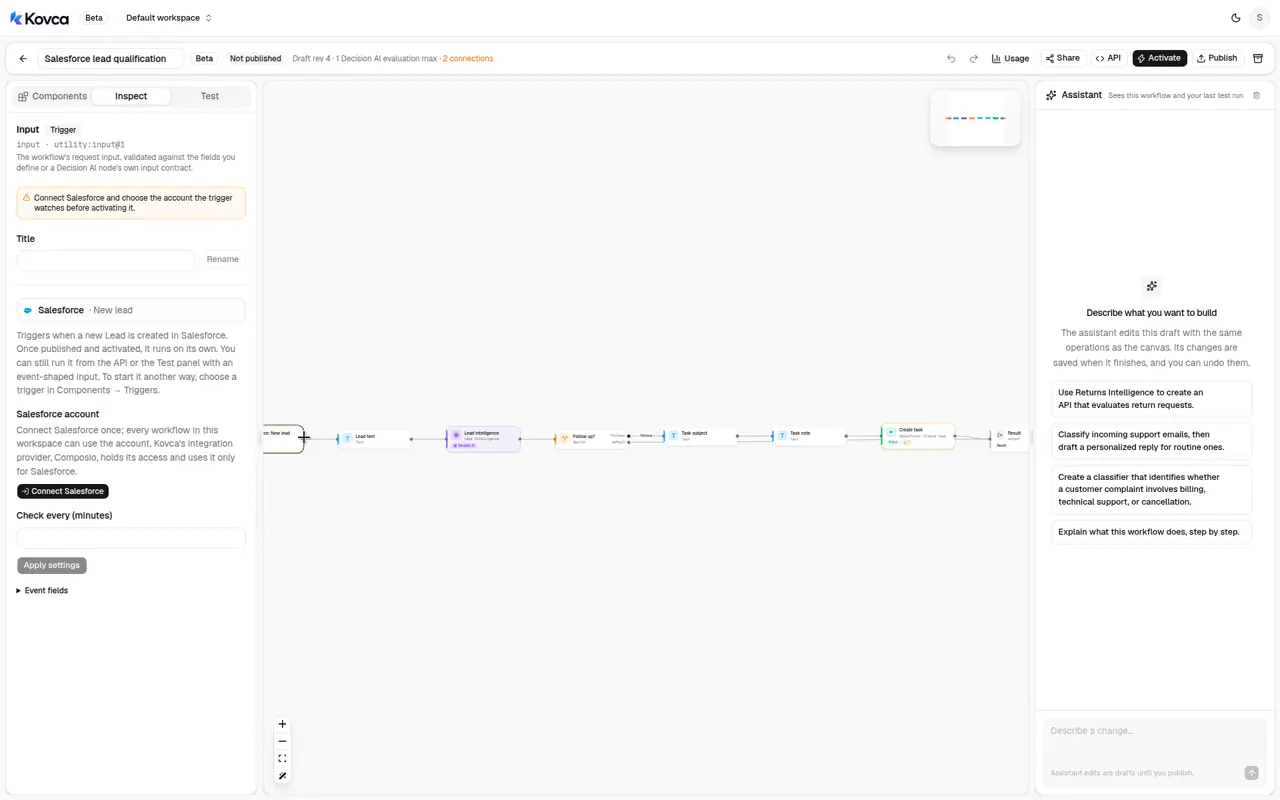 No Salesforce account is selected. Check every (minutes) is unset.
The only setting is Check every (minutes) (interval). It is the gap, in minutes, between checks for a new lead. The template leaves it unset. Kovca still starts the workflow from the New lead event when that event arrives.
Event fields later steps read:
| Field | Used for |
|---|---|
input.name | Lead text, and the task subject |
input.lead_id | Lead text, the task note, and Create task's Contact or lead ID |
input.lead | Lead text, inserted as JSON |
The sample lead object is:
| Key | Sample |
|---|---|
id | 00Q5e00000AbCdEFGH |
name | Priya Raman |
created_date | 2026-11-02T14:03:00.000Z |
Those are the keys in the sample. This template does not name any other key inside lead. If a live event's lead object has more keys, they are included only because Lead text inserts the whole object. A manual run or an API call can omit fields. Lead text then leaves that part blank.
The same lead does not start two runs: the event id is lead_id. A different lead is a new event and runs again.
3Write the message the node reads
Select Lead text. It builds Lead Intelligence's message.
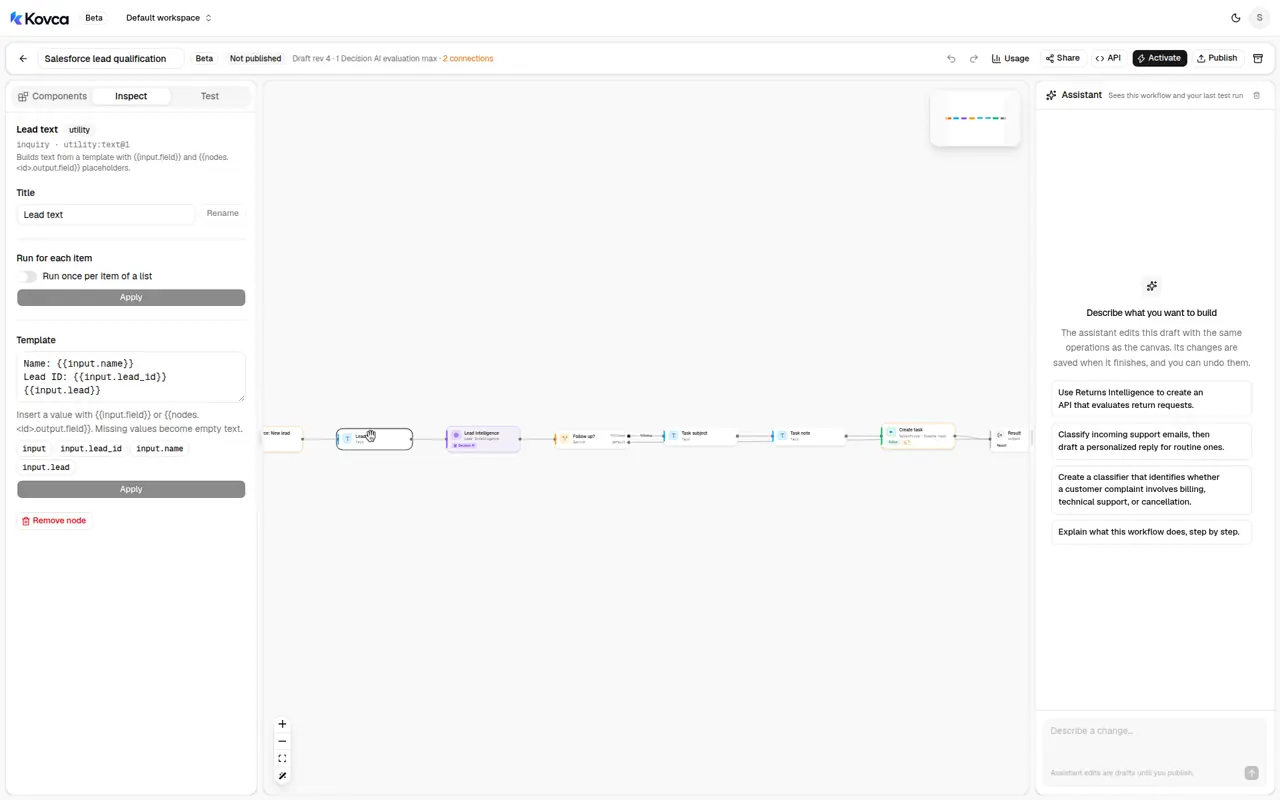 The template is the name, the lead id, and {{input.lead}}.
Name: {{input.name}}
Lead ID: {{input.lead_id}}
{{input.lead}}
message is required and accepts at most 4,000 characters. The template itself is short. A live lead object large enough to push the filled message over 4,000 characters fails this step.
4Put your criterion in
Select Lead Intelligence. message comes from Lead text. The criterion is a fixed value. Company, budget, timeline, and routing rules are left unset, because this event does not include them.
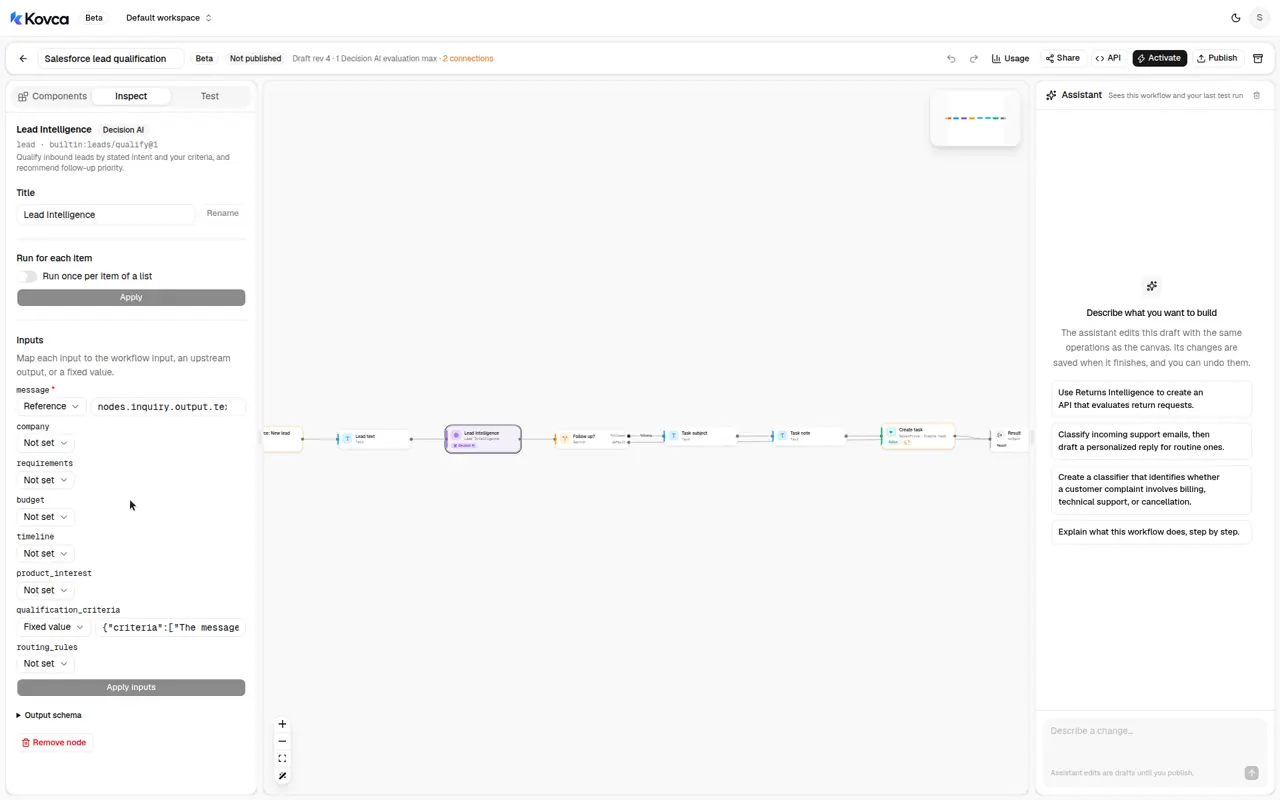 message comes from Lead text. qualification_criteria is a fixed value. Company and timeline are not mapped.
{
  "criteria": ["The message names a product or a project the sender wants to buy"]
}
Rewrite that sentence in your own words. criteria is a list of up to 10 items, each up to 300 characters. Each comes back as met, not_met, or unknown. A not_met result sets the fit to does_not_meet, and the action becomes nurture, so no task is created. An unknown result does not by itself stop a follow-up. With only a name, this criterion is usually unknown.
The node decides on fixed, published rules:
| Qualification | When | recommended_action |
|---|---|---|
hot | Ready to buy, and a near-term timeline is stated | prioritize_followup |
warm | Ready to buy, or actively evaluating | standard_followup |
cold | Interest, with no buying intent yet | nurture |
unqualified | A criterion is not met | nurture |
unqualified | Not a sales inquiry, or an existing customer or support request | manual_review |
insufficient_information | The intent is unclear | request_information |
Near-term means the message or a mapped timeline says the purchase or project should start within about three months. This template does not map timeline. A created date is not a buying timeline. missing_information lists what was not supplied. For this template that is usually budget, timeline, and company.
Follow up? creates a task only for prioritize_followup and standard_followup. nurture, request_information, and manual_review take default.
5Decide what counts as a follow-up
Select Follow up?. The switch reads nodes.lead.output.recommended_action and continues on the first matching case.
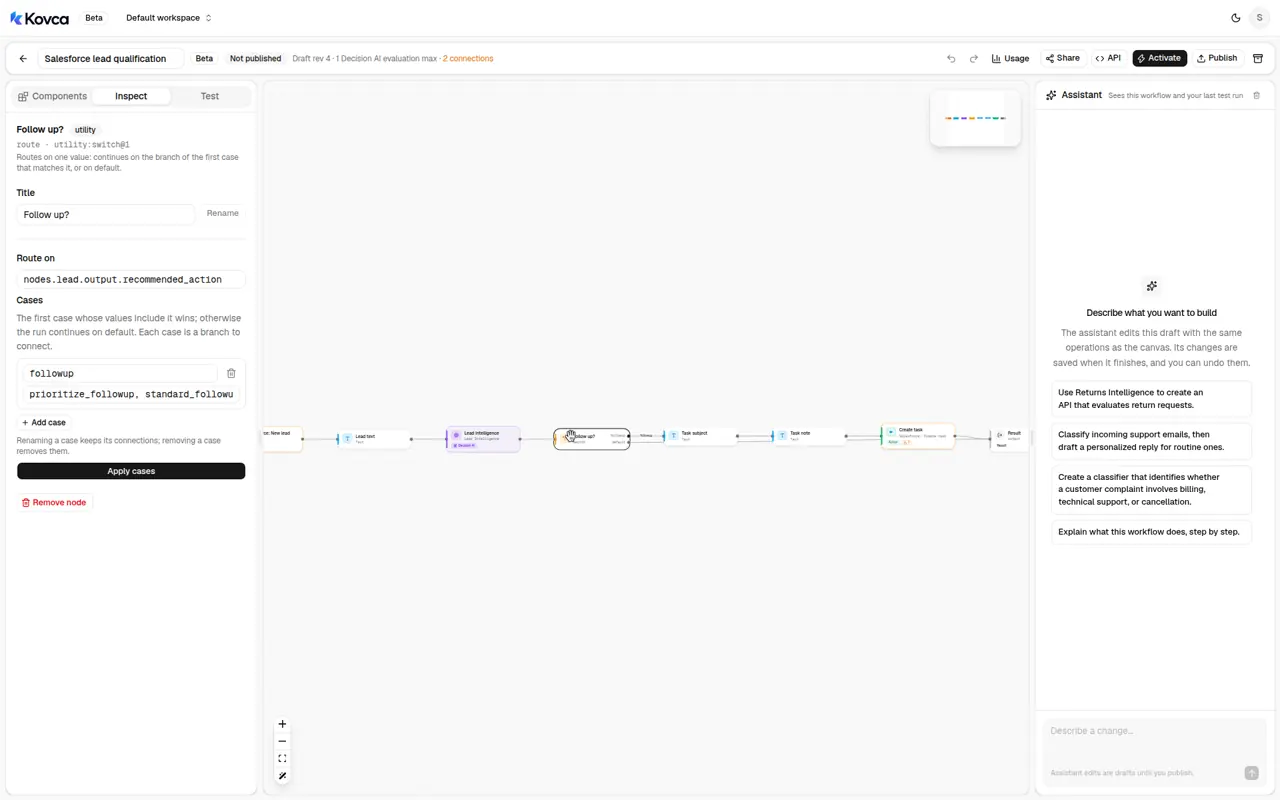 prioritize_followup and standard_followup go to Task subject. Everything else goes to the result.
| Case | Matches | Goes to |
|---|---|---|
followup | prioritize_followup, standard_followup | Task subject |
default | everything else, including nurture, request_information, and manual_review | Output |
6Create the task on the lead
Task subject and Task note run only on followup.
Task subject:
Follow up with {{input.name}}Task note:
Follow up on Salesforce lead {{input.lead_id}}. Qualification: {{nodes.lead.output.qualification}}. Recommended action: {{nodes.lead.output.recommended_action}}.Create task is Salesforce's Create task action. It is on the path from Task note to Output.
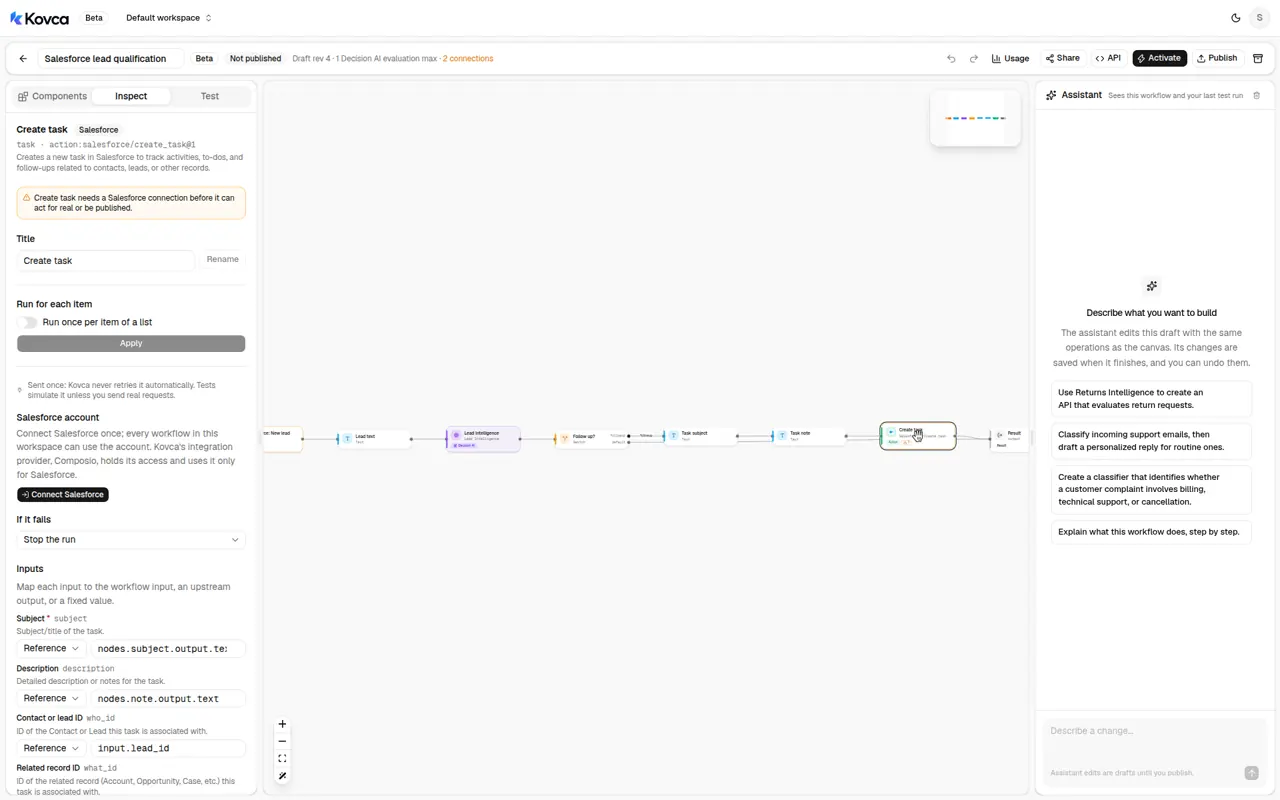 Subject comes from Task subject. Description comes from Task note. Contact or lead ID is input.lead_id. If it fails, the run stops.
| Create task field | Value |
|---|---|
Subject (subject) | nodes.subject.output.text |
Description (description) | nodes.note.output.text |
Contact or lead ID (who_id) | input.lead_id |
Leave Priority, Status, Due date, and Related record ID unset. Priority and status are strings your Salesforce org has to accept. The template does not guess them. If it fails is Stop the run. If the task is not created, the run fails and you find out. Create task is not idempotent: it is attempted once, and Kovca does not retry it. A second run with a new idempotency key can create another task. Choose the Salesforce account on this step before you activate. Studio tests simulate it and do not create a task.
7Test it
Open the Test tab. The template's examples are listed above the input. Priya Raman is the trigger's sample event. Alex Kim is the same shape with another id and name. Leave Send real requests off. Create task returns its sample. Nothing is created in Salesforce.
What Lead Intelligence returns depends on the message. Both examples are a name, a lead id, and a lead object with id, name, and created_date. That text does not name a product or a timeline. A run of the sample often takes default, and Task subject, Task note, and Create task are skipped.
Before you activate, run a stack of leads you have actually seen, including ones that should get a call and ones that should not. When the routes look right, turn on Send real requests once, with the Salesforce account chosen, on a lead you can delete the task from.
Publish, call it, and activate it
The same workflow can be called over the API. The body uses the trigger's field names. Create an API key under API keys and keep it on your backend.
curl https://kovca.io/api/v1/workflows/wf_.../execute \
  -H "Authorization: Bearer $KOVCA_API_KEY" \
  -H "Content-Type: application/json" \
  -H "Idempotency-Key: 00Q5e00000AbCdEFGH" \
  -d '{
    "input": {
      "lead_id": "00Q5e00000AbCdEFGH",
      "name": "Priya Raman",
      "lead": {
        "id": "00Q5e00000AbCdEFGH",
        "name": "Priya Raman",
        "created_date": "2026-11-02T14:03:00.000Z"
      }
    }
  }'
A run that classifies that lead as warm, with standard_followup, takes the task path. The fields below are that shape. Create task returns its sample, so tasked is true and task_id is the sample id. The subject is Task subject filled in from that name. missing_information lists budget, timeline, and company because this template does not send them, and the message does not state a budget or a near-term timeline. What the node returns for a given lead depends on the text. The sample does not state a product, so a test of it often takes default instead, with task_subject, task_id, and tasked all null.
{
  "request_id": "req_...",
  "run_id": "run_...",
  "workflow": { "id": "wf_...", "version": 1 },
  "status": "succeeded",
  "output": {
    "qualification": "warm",
    "recommended_action": "standard_followup",
    "missing_information": ["budget", "timeline", "company"],
    "route": "followup",
    "task_subject": "Follow up with Priya Raman",
    "task_id": "00T5e00000LmNoPQRS",
    "tasked": true
  },
  "steps": [
    { "id": "input", "status": "succeeded" },
    { "id": "inquiry", "status": "succeeded" },
    { "id": "lead", "status": "succeeded" },
    { "id": "route", "status": "succeeded" },
    { "id": "subject", "status": "succeeded" },
    { "id": "note", "status": "succeeded" },
    { "id": "task", "status": "succeeded" },
    { "id": "output", "status": "succeeded" }
  ],
  "evaluations": 1
}
Use the lead id as the Idempotency-Key. A retry returns the original run instead of creating a second task. Kovca does not store the lead or the output, so keep the response from the first call. Values from steps that didn't run come back as null.
To run it from Salesforce, open Activate. The checklist is what's left: connect Salesforce, and choose that account on the trigger and on Create task. Publish & activate publishes the draft and starts it. The checklist's activate row runs on every new lead. A live automation runs that pinned version. Later edits don't reach it until you choose Publish & update.
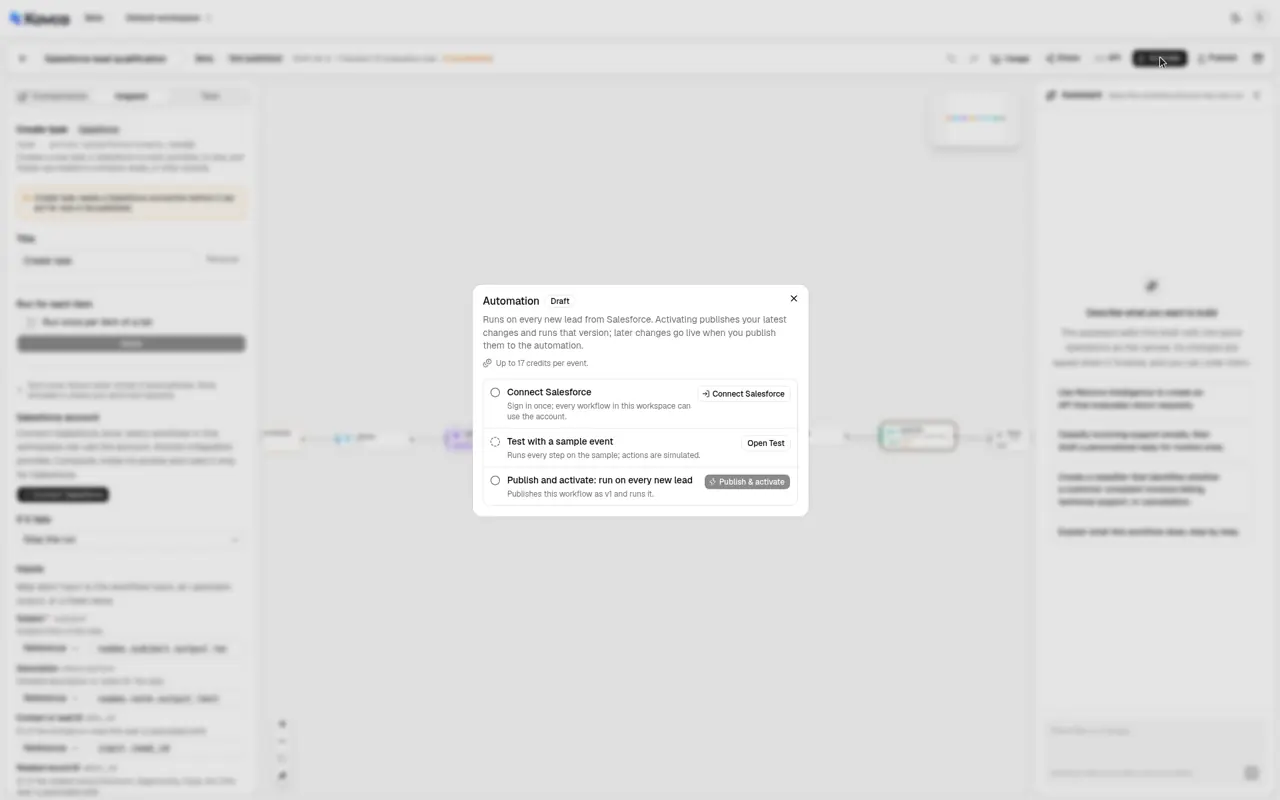 Connect Salesforce is still to do. The panel shows up to 17 credits per event.
You sign in on Salesforce's page. The sign-in page names Composio, which holds the account access and uses it only for Salesforce. Kovca keeps an ID for the account. Don't connect an account until the routes look right in the Test tab.
A new lead starts a run. Follow runs in Executions. While an automation is paused, events that arrive are dropped. Kovca does not keep them to run later. A failed run is not retried on its own, because the task may already have been created.
If a person already works the lead queue
You don't need this if a person can read the new leads and the list is short. Salesforce assignment rules can send a lead to a user or a queue from fields you already store, such as lead source or country. A lead queue holds the list until someone takes it. Neither reads an inquiry that is not on the lead, and neither creates a task from this classification. That is a fair setup for a few leads a day.
What the workflow adds is the same classification on every new lead, and a task on that lead only when the recommended action is a follow-up. You still have to choose the Salesforce account, and read a sample of results before you activate it. If the event you receive is only a name, expect most runs to skip the task.
Make it yours
- Write the criterion you actually use. Lead Intelligence's criterion is one sentence. Replace it. A criterion the message does not mention comes back
unknown, and that does not by itself create or skip the task. - Leave researchers without a task. That is already what
defaultdoes fornurture,request_information, andmanual_review. Add another case only if you want a different Salesforce action for one of those. - Set a priority your org has. Create task's Priority is a string. The template leaves it unset. Put a value your Salesforce task picklist accepts, as a fixed value, once you know it.
- Don't create a contact from this event. Create contact needs a last name. Split the name yourself only after you have decided the rule. The sample does not include a last name field.
- Change it without surprising a live org. Edit the draft and use Publish & update. The running version stays pinned until you do.
What it costs
Credits, and only for steps that succeed. Studio tests are free, and simulated actions are free.
- The run: 10 credits when a Salesforce event starts it, 1 credit when the API starts it.
- Lead Intelligence: 5 credits.
- Salesforce Create task: 2 credits when it runs for real, and only on the follow-up branch.
The switch and the text steps are free. A branch that doesn't run isn't charged. The Activate panel adds every step together, including steps on branches that can't run in the same event, so its number is an upper bound. With this template that upper bound is 17 credits per event. The response's credits field is the run's total. See billing, the workflows API, HTTP actions, and automations.