

Escalate urgent Slack channel messages into incidents
Build a Kovca workflow that starts from a new Slack message, classifies it, and on high priority opens an incident, posts to on-call, and reacts on the message.
Urgent outage reports and customer complaints land in a Slack support channel next to routine chatter. Nobody opens an incident until someone happens to read the channel. By then the thread has moved on, and the people on call still have not heard.
This guide builds a workflow that starts when a new message is posted, classifies it, and when the priority is high, opens an incident, posts to an on-call channel, and adds a reaction on the original message. Routine messages are classified and then left alone. You'll start from a template, test it, and activate it on the channel.
The template already uses the Slack New message trigger, Send message, and Add reaction. It does not store a Slack account. You choose the account when you activate. Until then the draft saves, and Studio tests simulate the Slack steps.
If the channel only gets a handful of messages a day, Slack's own keyword notifications and a short note for who opens the incident is less machinery than this. The workflow is for the channel where urgent reports sit next to everything else.
What you'll build
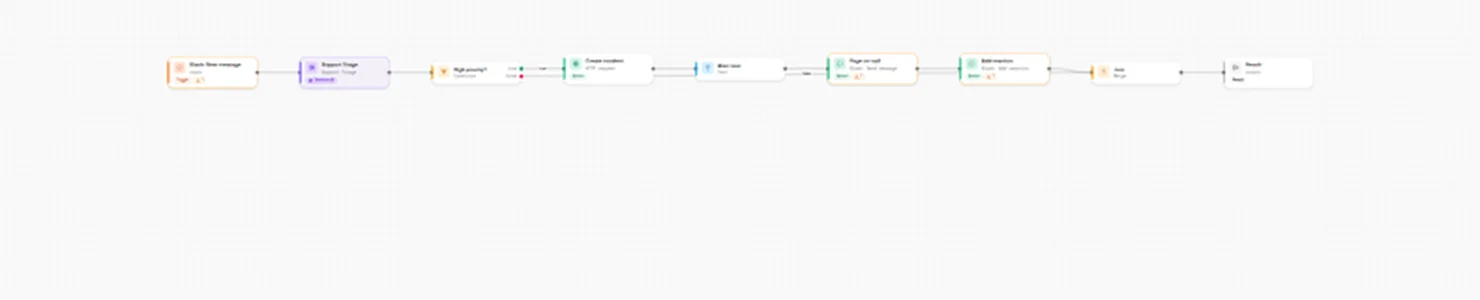 Slack new message, Support Triage, then a high-priority branch into Create incident, Alert text, Page on-call, and Add reaction.
| Step | Node | What it does |
|---|---|---|
| Input | Slack: New message (slack/new_message) | Starts the workflow. The event fields are attachments, blocks, bot_id, channel, channel_type, files, subtype, team_id, text, thread_ts, ts, and user. |
| Support Triage | Decision AI | Returns category, priority (low, medium, high), and requires_human_review. |
| High priority? | Condition | true when priority is high. |
| Create incident | HTTP request | On the high-priority branch, opens an incident in your tracker. |
| Alert text | Text | Builds the on-call message from the incident id and the Slack text. |
| Page on-call | Slack Send message (action:slack/send_message@1) | Posts that text to the on-call channel. Sent once. |
| Add reaction | Slack Add reaction (action:slack/add_reaction@1) | Adds an emoji on the original message. Safe to retry. |
| Join | Merge | Brings both branches back together. |
| Output | Output | Returns escalated, priority, category, incident_id, paged, and reacted. |
The false branch goes straight to Join. A routine message does not open an incident, post, or react. priority is the severity Support Triage returns.
Build it in the Studio
1Start from the template
Click Use this template above, or open Slack incident escalation in Workflows.
The draft opens on the canvas. The components library is on the left. Triggers, AI Nodes, Logic, and Actions are the four groups. Slack is under Triggers and under Actions.
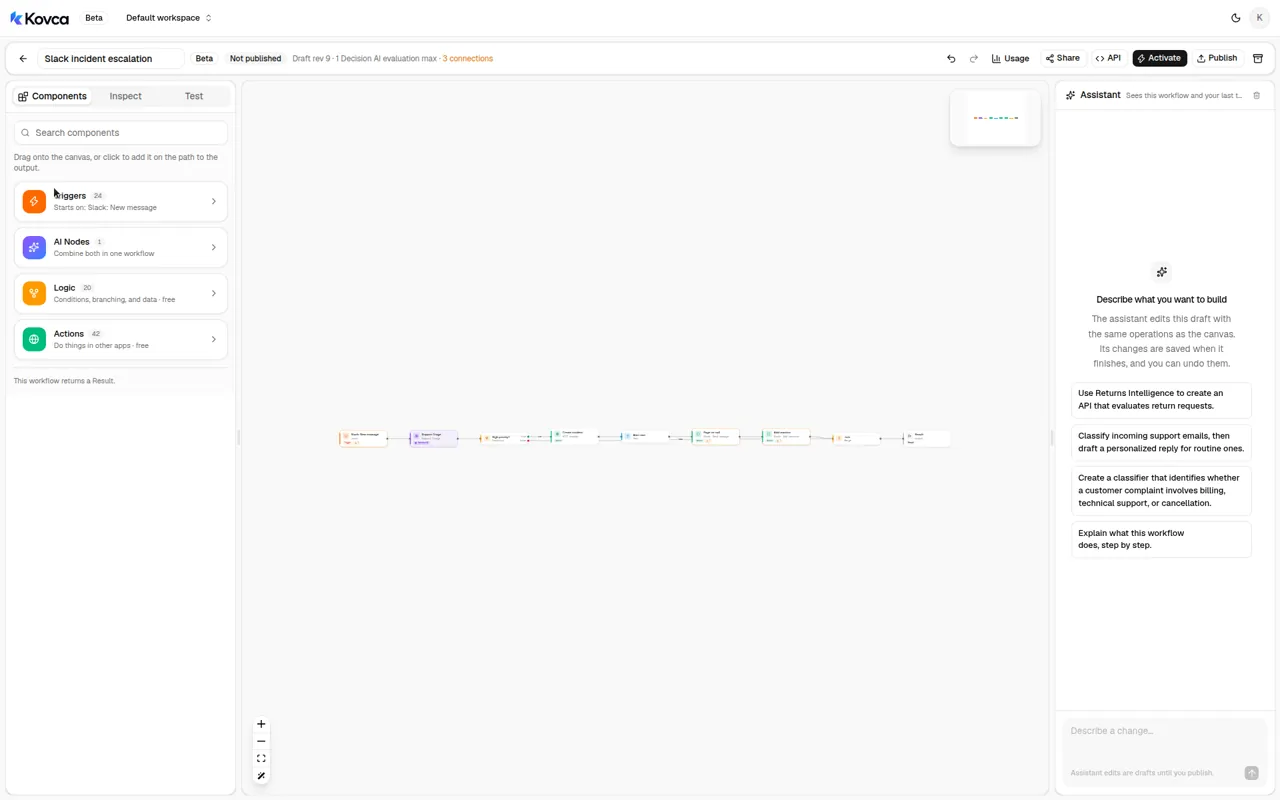 The library home. Slack is inside Triggers and Actions.
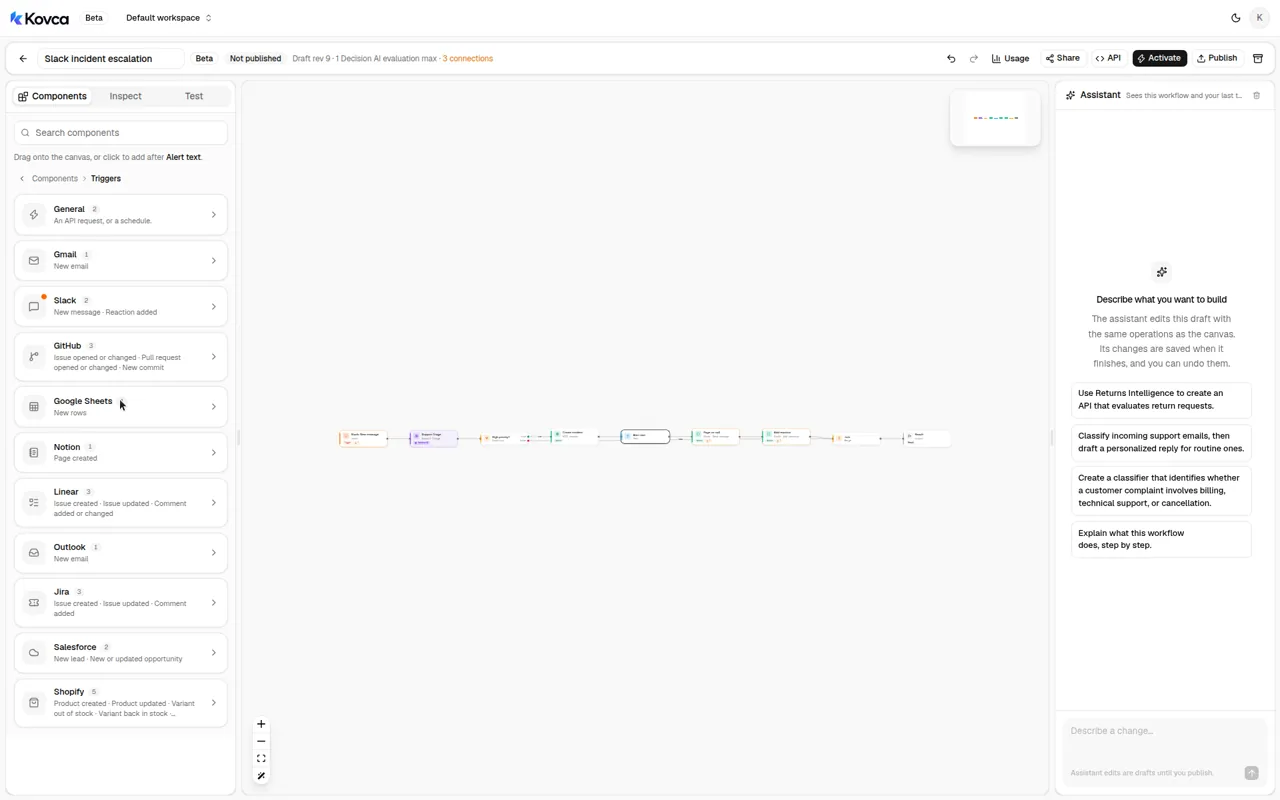 Slack is one app in the trigger list. New message is its trigger.
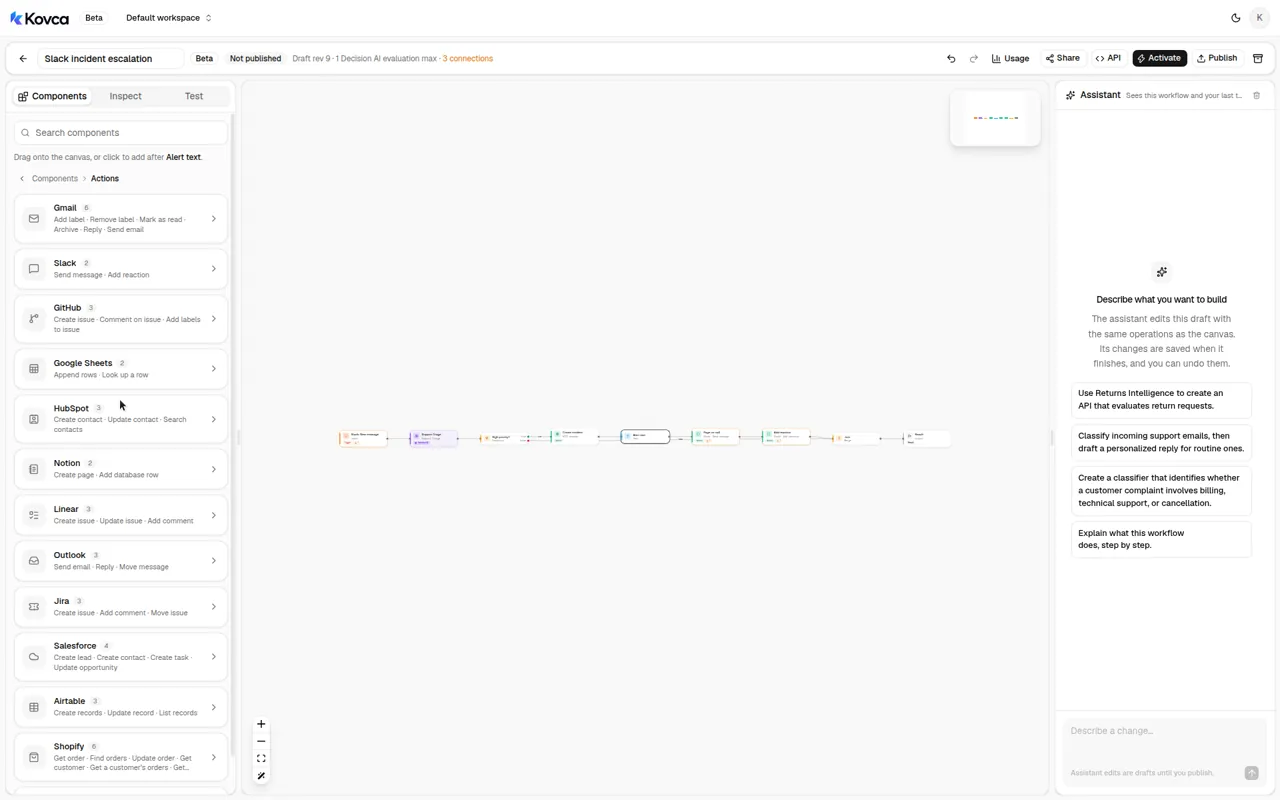 Slack's actions are Send message and Add reaction, next to the other apps.
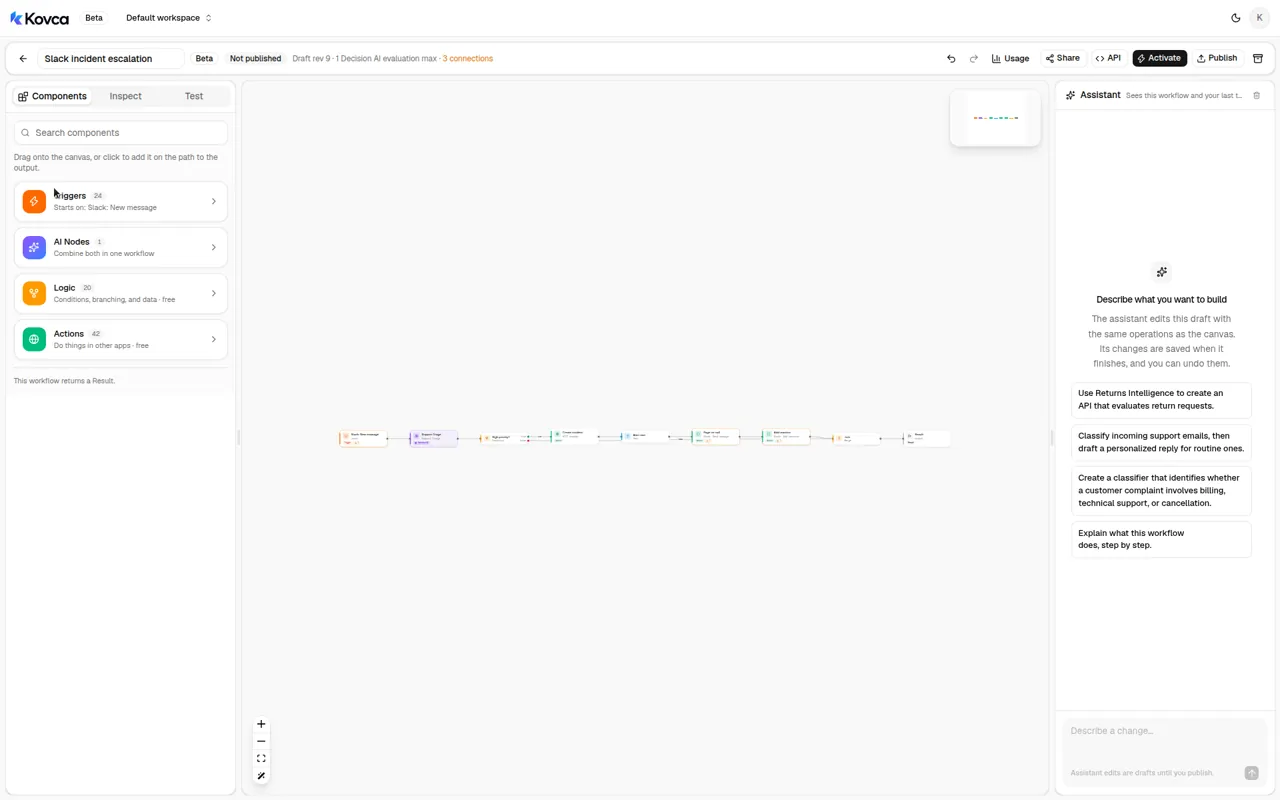 The draft is not callable until you publish and activate it. Three Slack connections are still to choose.
2The workflow starts from a new message
Select the input step. It is Slack: New message, not an API request. The account line is empty until you connect Slack. Leave it empty while you test.
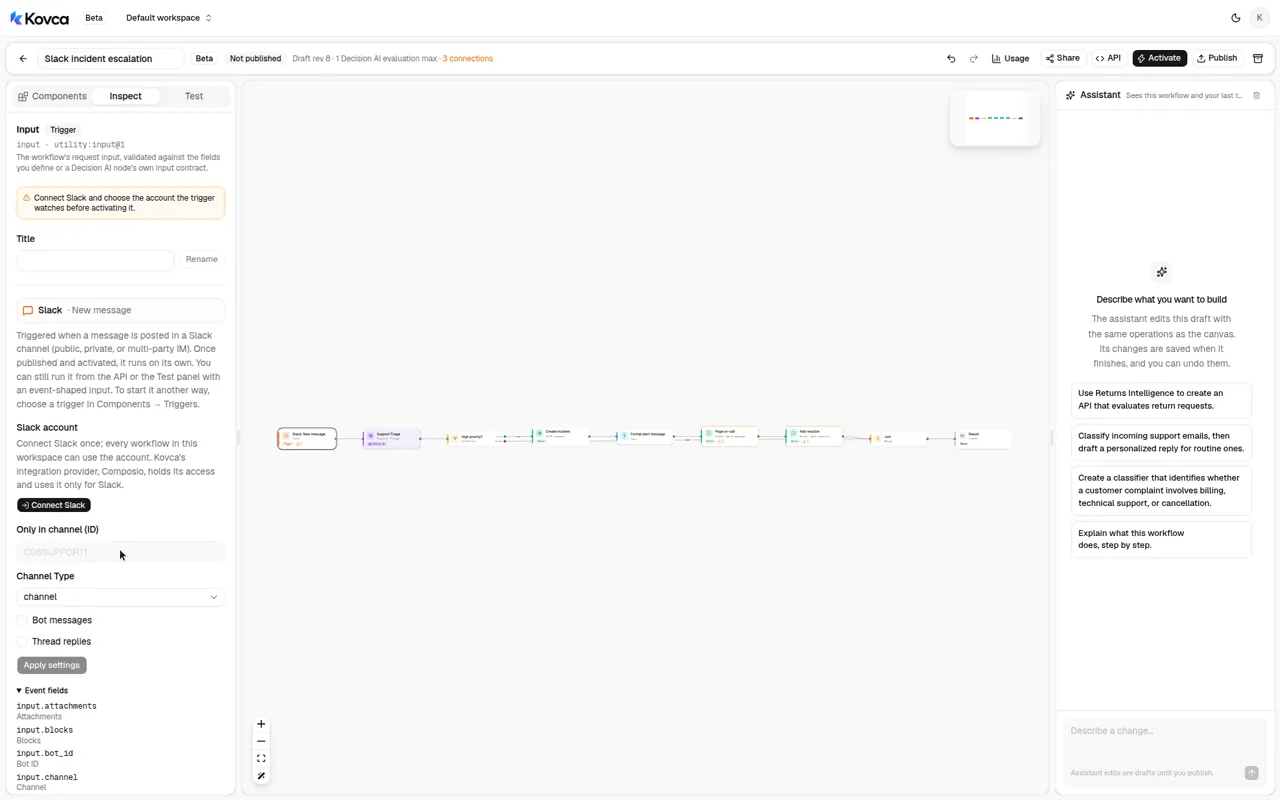 Only in channel is C08SUPPORT1. Channel Type is channel. No Slack account is selected.
The template sets Only in channel (ID) (channel_id) to C08SUPPORT1 and Channel Type (channel_type) to channel. C08SUPPORT1 is a stand-in from the trigger's sample event. Replace it with your support channel's ID. The other channel types are group and mpim. Bot messages (is_bot_message) and Thread replies (is_thread_reply) are optional filters. The template leaves them unset. Until an account is connected, Only in channel asks you to connect Slack to choose a channel. Once an account is connected, that field lists the workspace's channels.
Event fields later steps read:
| Field | Used for |
|---|---|
input.text | Support Triage's message, the incident title and description, and the on-call post |
input.channel | The incident payload, and Add reaction's Channel |
input.ts | Add reaction's Message timestamp, and the incident payload |
input.user | The incident payload |
The event also includes attachments, blocks, bot_id, channel_type, files, subtype, team_id, and thread_ts. A manual run or an API call can omit them. The same message does not start two runs: the event id is ts. A later message is a new event and runs again. A message this workflow posts does not start the automation again.
3Classify the message
Select Support Triage. message is mapped from the event. Slack messages have no subject, and subject is optional on this node, so the template leaves it unmapped.
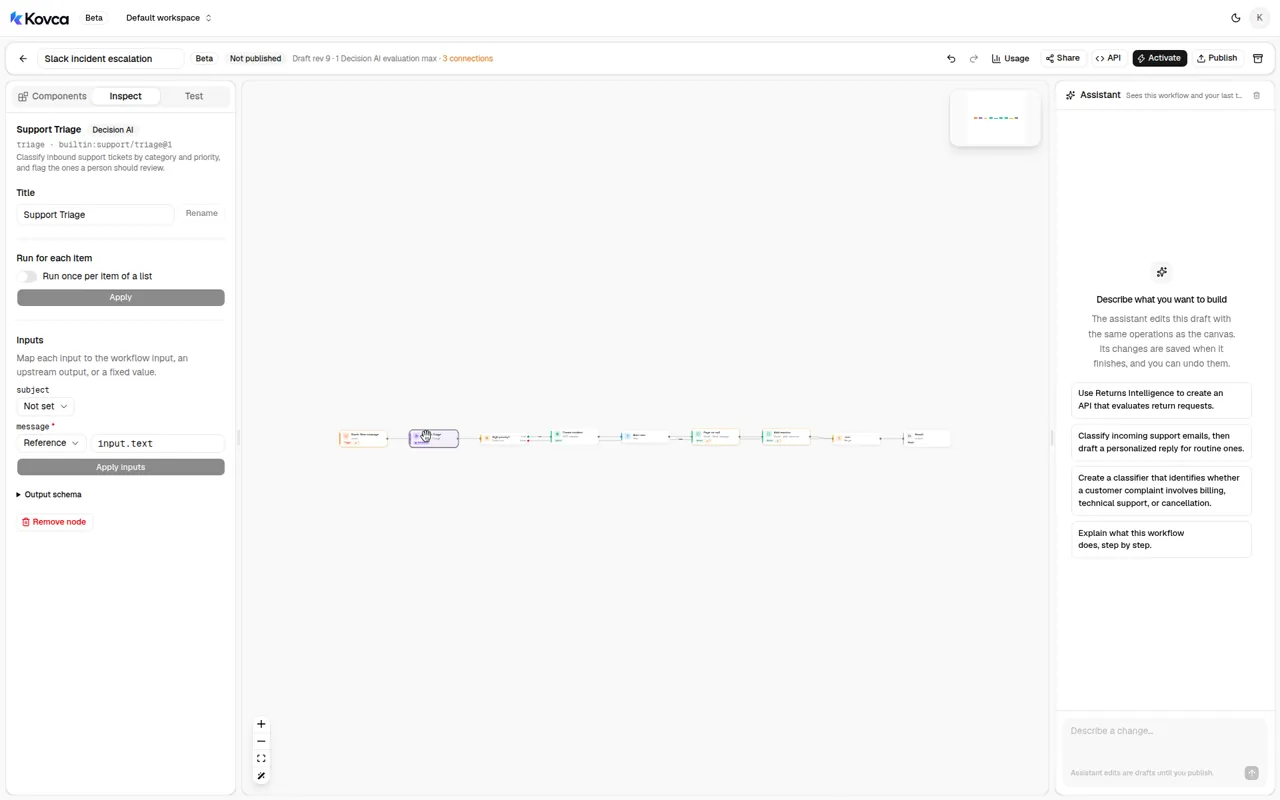 message comes from input.text. subject is not mapped.
The node decides on fixed, published rules:
categoryisbilling,technical,account,product, orother.technicalis its bucket for errors, bugs, outages, crashes, slow performance, and integration problems.productcovers both how a feature works and a feature request.priorityislowfor a question or feedback,mediumwhen the customer has a problem but can keep working, andhighwhen they're blocked right now. A message the node treats as a security problem ishigh.requires_human_reviewistruewhen a legal threat or a security problem is reasonably possible, or when the category or priority itself is unclear.
message is required and accepts at most 8,000 characters, which is also the limit on input.text. An empty text fails this step. A message that is only a file, with no text, is in that group.
4Decide what counts as urgent
Select High priority?. A condition checks one or more rules and continues on its true or false branch. This one has a single rule: nodes.triage.output.priority equals high.
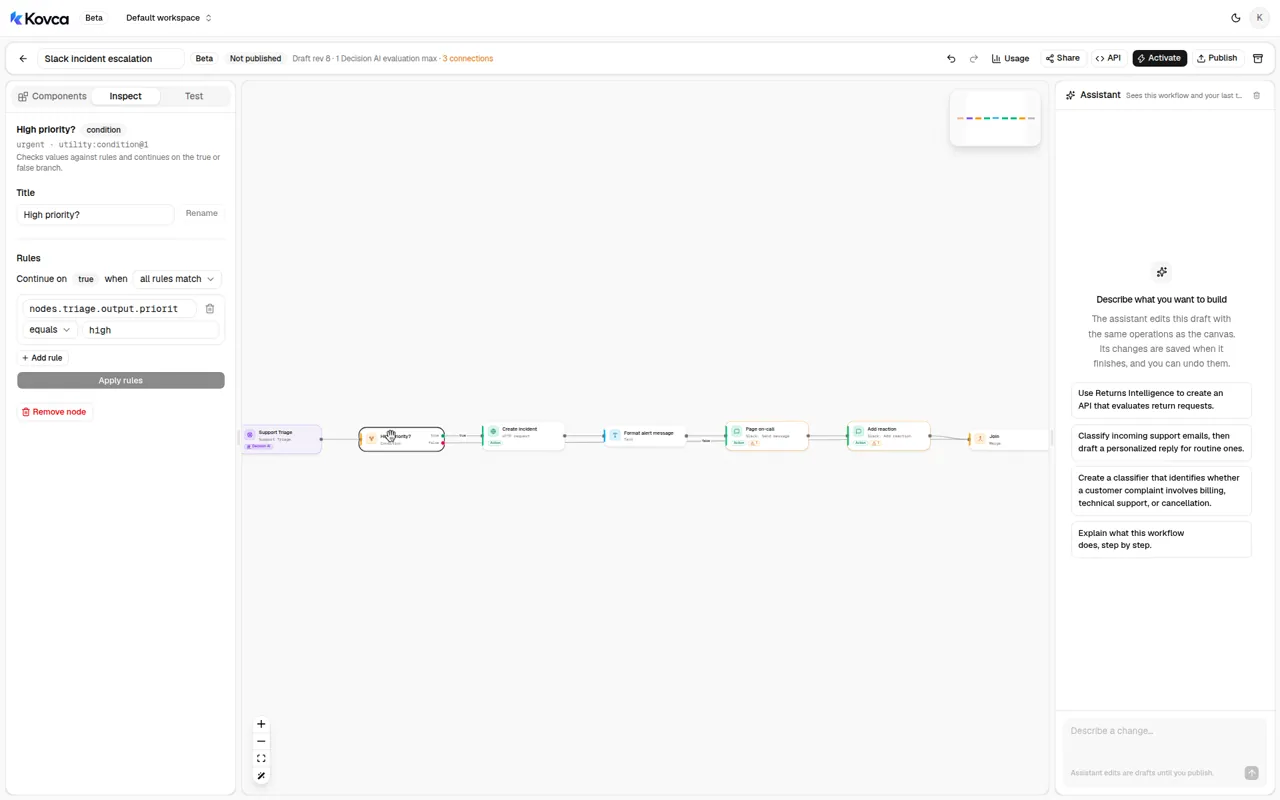 priority equals high. The true branch opens the incident. The false branch joins the result.
Make the rule match your on-call policy. A common change: also escalate messages that need a person. Set Match to any and add nodes.triage.output.requires_human_review is true.
5Open the incident
Select Create incident. The body fields are the JSON object your tracker receives: the message, the triage result, and the Slack ids.
Point it at your tracker:
- Choose a Connection, or create one from the inspector. A connection holds the base URL and credentials (a bearer token, an API key header, basic auth, or a secret URL). With a connection, the URL becomes a path such as
/api/incidents. - Change the Body fields to the names your tracker expects. The template sends
title,description,category,priority,channel,user, andts.titleanddescriptionboth readinput.text. - Paste a real response into Sample response. Studio tests return it instead of calling the API, and Alert text reads
body.id. The template's sample is{ "id": "INC-1042", "url": "https://incidents.example.com/INC-1042" }with status 201. - Leave When the call fails at Fail the run. If the incident can't be created, the run fails and you find out. Page on-call and Add reaction are after this step, so they do not run when the incident was not created.
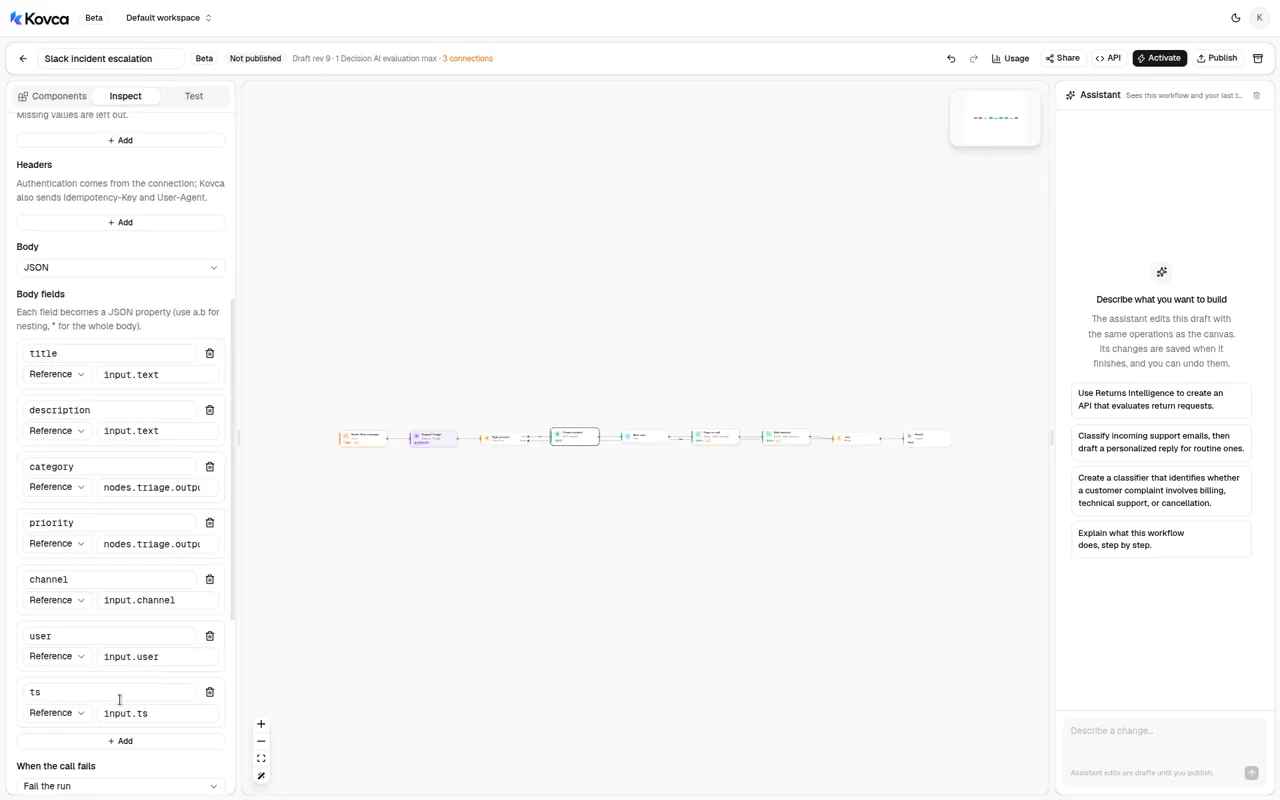 Body fields map the message, the triage result, and the Slack ids. When the call fails, the run fails.
Every request carries an Idempotency-Key that stays the same across retries of that step in that run. POST requests are only retried when you turn that on for the step.
6Post to the on-call channel
Alert text builds the message Page on-call sends.
High-priority incident {{nodes.ticket.output.body.id}} opened: {{input.text}}Page on-call is Slack's Send message action. It is on the path from Alert text to Add reaction.
| Send message field | Value |
|---|---|
Channel (channel) | on-call |
Message (markdown_text) | nodes.alert.output.text |
on-call is a stand-in. Channel takes an ID or a name. Replace it with your on-call channel's ID or name. Message accepts at most 8,000 characters. A Slack text that is already at that limit, plus the prefix in Alert text, can be too long for this step. Shorten the template if you see that.
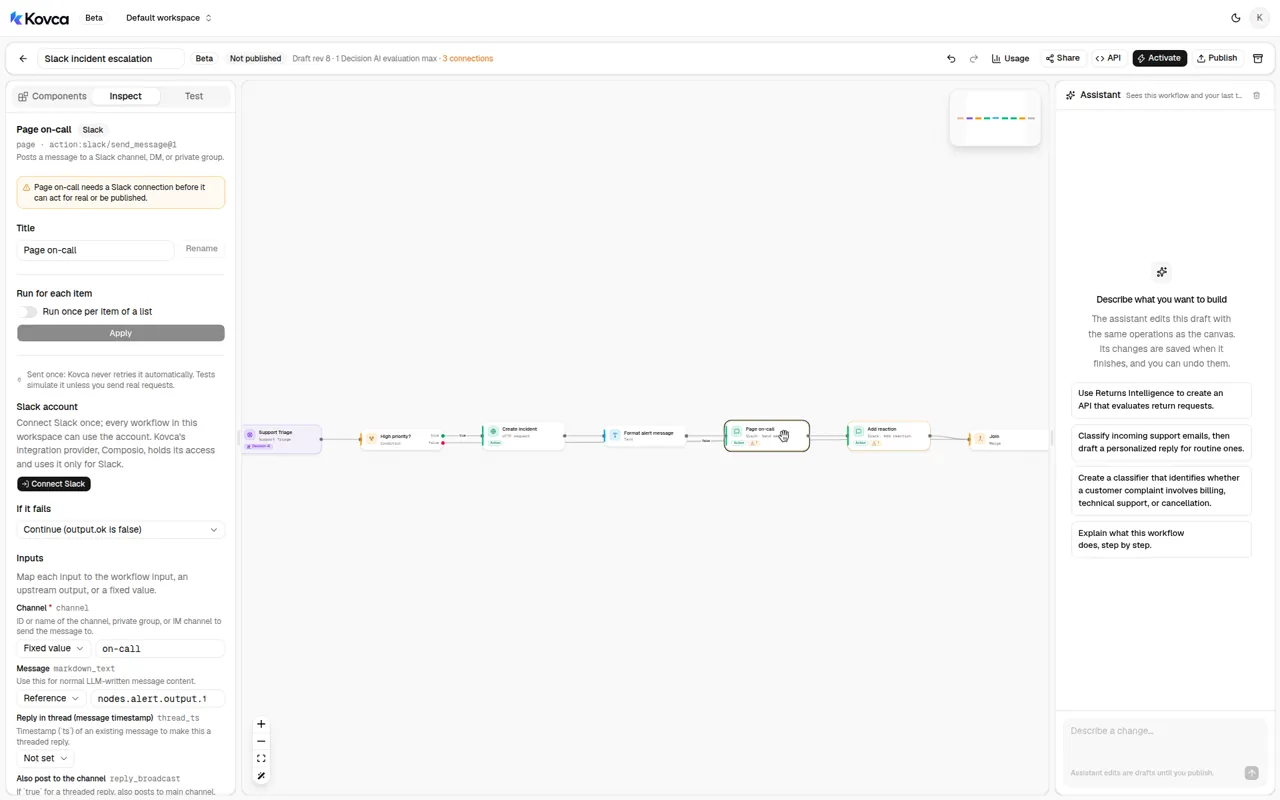 Channel is the fixed value on-call. Message comes from Alert text. If it fails, the run continues.
If it fails is Continue (output.ok is false). If the post does not go out, the incident still exists and the run still succeeds, with paged false. Send message is sent once: Kovca does not retry it on its own. Choose the Slack account on this step before you activate. Studio tests simulate it and do not post. A message this step posts does not start the automation again.
7React on the original message
Add reaction marks the message in the support channel so the next person to read it can see it was picked up.
| Add reaction field | Value |
|---|---|
Channel (channel) | input.channel |
Message timestamp (timestamp) | input.ts |
Emoji name (name) | eyes |
eyes is the emoji short name, without colons. Change it to one your workspace has. The step is safe to retry. If it fails is Continue (output.ok is false), so a missed emoji does not fail the run after the incident exists. Choose the same Slack account.
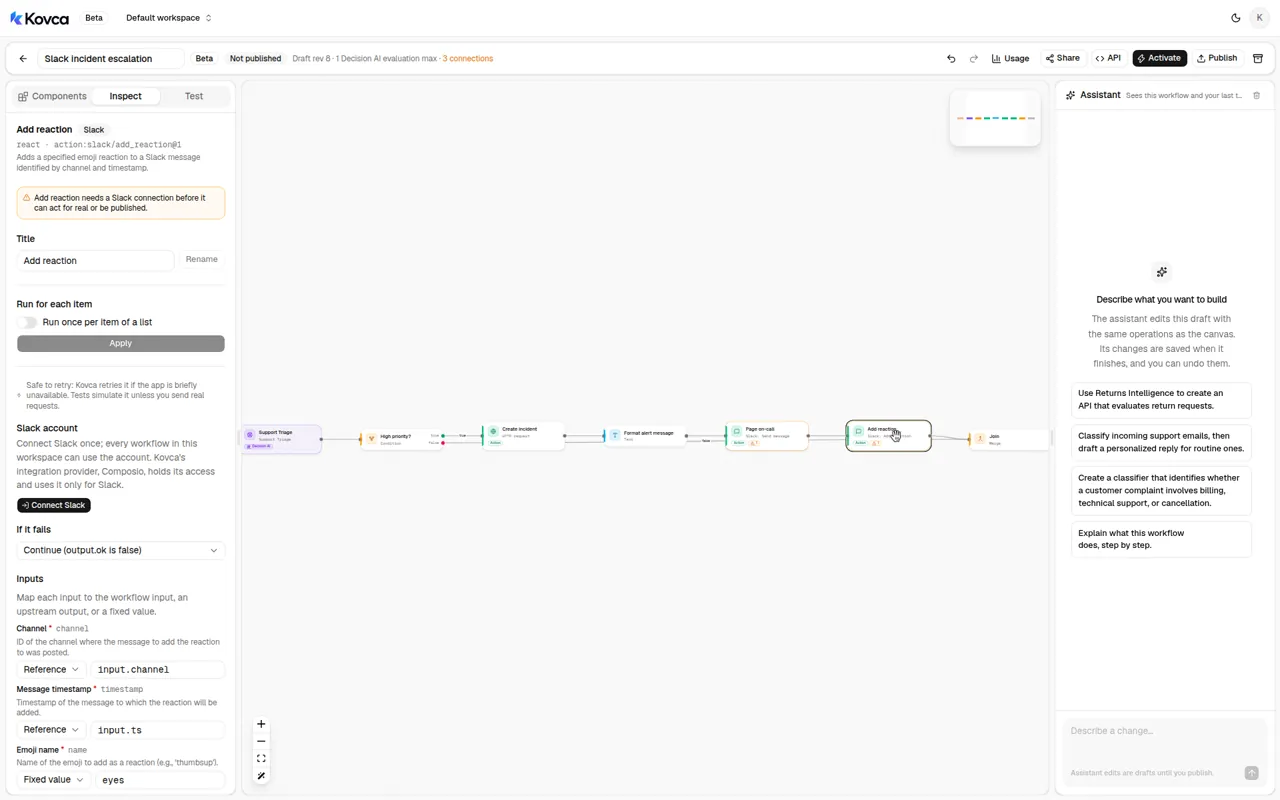 Channel is input.channel, the timestamp is input.ts, and the emoji name is eyes.
8Test it
Open the Test tab. The template's examples are listed above the input. Leave Send real requests off: the HTTP step returns its sample response, and Slack Send message and Add reaction return their samples. Nothing is posted.
Run Checkout outage when you want a message about a failing checkout, and How-to question when you want a shorter one. What Support Triage returns depends on the message. A high priority takes Create incident, Page on-call, and Add reaction. Any other priority takes Join directly, and those three steps are skipped.
Before you activate, run a stack of real messages from the channel, including a few that were urgent and a few that should have stayed in the channel. When the routes look right, turn on Send real requests once, with the tracker connection in place and the Slack account chosen, to check those calls.
Publish, call it, and activate it
The same workflow can be called over the API. The body uses the trigger's field names. Create an API key under API keys and keep it on your backend.
curl https://kovca.io/api/v1/workflows/wf_.../execute \
  -H "Authorization: Bearer $KOVCA_API_KEY" \
  -H "Content-Type: application/json" \
  -H "Idempotency-Key: 1762003954.001200" \
  -d '{
    "input": {
      "attachments": [],
      "blocks": [],
      "channel": "C08SUPPORT1",
      "channel_type": "channel",
      "files": [],
      "team_id": "T02ACME0001",
      "text": "Checkout is failing for customers since this morning. They get a 502 after entering card details.",
      "ts": "1762003954.001200",
      "user": "U04MARIA01"
    }
  }'
A run that classifies that message as technical and high takes the incident path. The fields below are that shape, with the template's sample incident id. Send message and Add reaction return their samples, so paged and reacted are true.
{
  "request_id": "req_...",
  "run_id": "run_...",
  "workflow": { "id": "wf_...", "version": 1 },
  "status": "succeeded",
  "output": {
    "escalated": true,
    "priority": "high",
    "category": "technical",
    "incident_id": "INC-1042",
    "paged": true,
    "reacted": true
  },
  "steps": [
    { "id": "input", "status": "succeeded" },
    { "id": "triage", "status": "succeeded" },
    { "id": "urgent", "status": "succeeded" },
    { "id": "ticket", "status": "succeeded", "http_status": 201 },
    { "id": "alert", "status": "succeeded" },
    { "id": "page", "status": "succeeded" },
    { "id": "react", "status": "succeeded" },
    { "id": "merge", "status": "succeeded" },
    { "id": "output", "status": "succeeded" }
  ],
  "evaluations": 1
}
Use the message timestamp as the Idempotency-Key. A retry returns the original run instead of opening a second incident. Kovca does not store the message or the output, so keep the response from the first call. Values from steps that didn't run come back as null.
To run it from the channel, open Activate. The checklist is what's left: connect Slack, choose that account on the trigger, on Page on-call, and on Add reaction, replace C08SUPPORT1 and on-call, and point Create incident at your tracker. Publish & activate publishes the draft and starts it. The checklist's activate row runs on every new message. A live automation runs that pinned version. Later edits don't reach it until you choose Publish & update.
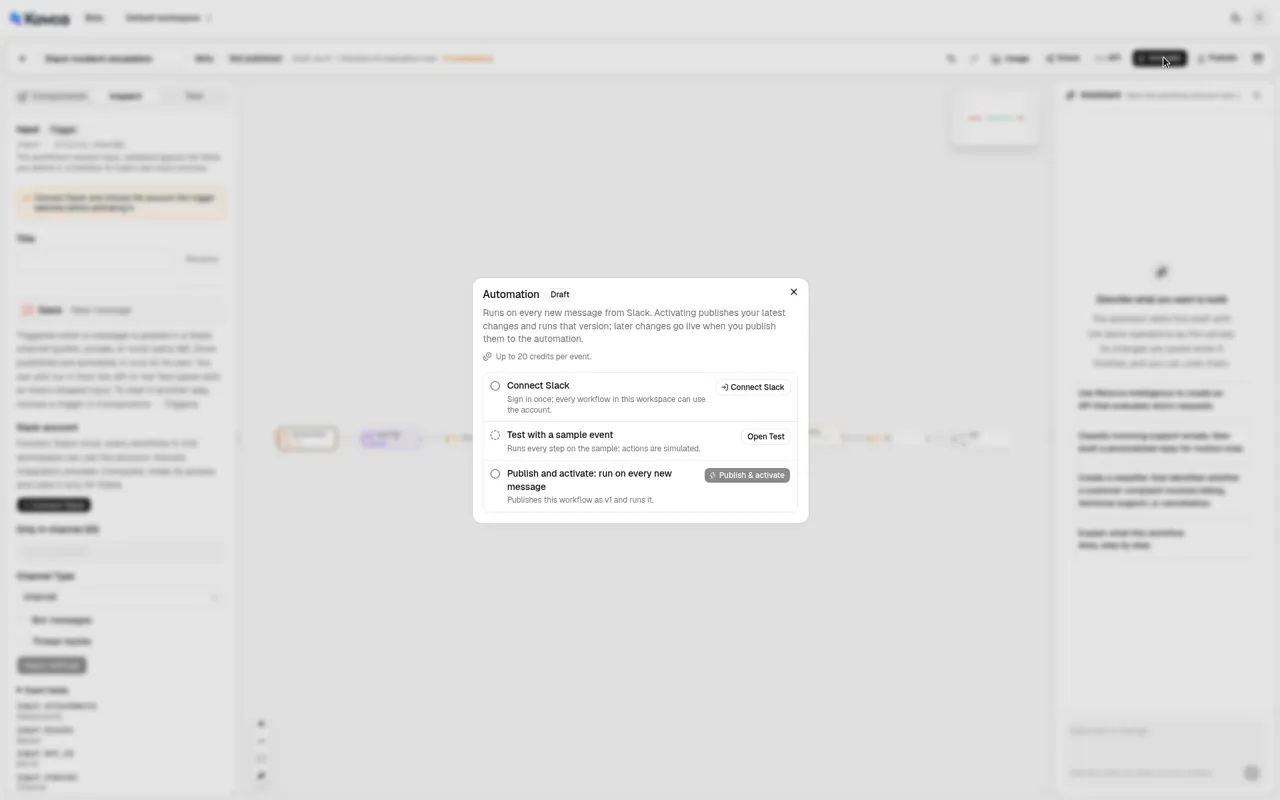 Connect Slack is still to do. The panel shows up to 20 credits per event.
You sign in on Slack's page. The sign-in page names Composio, which holds the account access and uses it only for Slack. Kovca keeps an ID for the account. Don't connect an account until the routes look right in the Test tab.
A new message in the channel starts a run. Follow runs in Executions. While an automation is paused, events that arrive are skipped. A failed run is not retried on its own, because the incident or the post may already have happened.
If the channel is quiet
You don't need this if a person can read the channel. Slack can notify you for a keyword, and the incident tracker can stay a form with the message and a link back to it. That's a fair setup for a few reports a day.
What the workflow adds is the same classification on every message, an incident only when the priority is high, a post in the on-call channel, and a reaction on the original message. You still have to replace the stand-in channel, point Create incident at a real tracker, choose the Slack account, and read a sample of results before you activate it.
Make it yours
- Escalate messages that need a person. Support Triage will not do that through
priorityalone. Addrequires_human_reviewis true on High priority?, with Match set to any. - Page a different channel per category. Add a lookup from
nodes.triage.output.categoryto a channel ID, and map Page on-call's Channel to that result. - Change the emoji. Add reaction's Emoji name is the short name.
eyesis a stand-in. - Roll it out on a copy of the channel. Point Only in channel at a test channel for a week and compare what it opens with what the team opened by hand.
- Change it without surprising a live channel. Edit the draft and use Publish & update. The running version stays pinned until you do.
What it costs
Credits, and only for steps that succeed. Studio tests are free, and simulated actions are free.
- The run: 10 credits when a Slack event starts it, 1 credit when the API starts it.
- Support Triage: 5 credits.
- Create incident: 1 credit when the HTTP request runs for real.
- Slack Send message or Slack Add reaction: 2 credits each, when that action runs for real.
The condition, text, and merge are free. A branch that doesn't run isn't charged. The Activate panel adds every step together, including steps on branches that can't run in the same event, so its number is an upper bound. With this template that upper bound is 20 credits per event. The response's credits field is the run's total. See billing, the workflows API, HTTP actions, and automations.