

Screen warranty claims from Outlook
Build a Kovca workflow that starts from a new Outlook email, checks the claim against warranty terms you supply, then replies and files the message.
Warranty claim emails land in a shared Outlook inbox next to sales and support mail. Someone reads each one to decide whether it is covered, not covered, or missing a date or a receipt, then replies or files it by hand. Customers wait, and the odd ones sit until a person notices.
This guide builds a workflow that starts when a new email arrives, checks the claim against warranty terms you write into the workflow, and then replies and files the message. A claim inside the terms gets one reply. A claim outside the warranty period gets another. A claim that is missing a purchase date or proof of purchase gets a reply that asks for them. Anything else, including a claim an exclusion may apply to, gets a reply that a person will review it. You'll start from a template, test it, and activate it on the mailbox.
The template already uses the Outlook New email trigger, Reply, and Move message. It does not store an Outlook account. You choose the account when you activate. Until then the draft saves, and Studio tests simulate the Outlook steps.
If the shared inbox only gets a few warranty claims a week, an Outlook rule that files those subjects into one folder, and a person who reads that folder, is less machinery than this. The workflow is for the inbox where warranty mail sits with everything else.
What you'll build
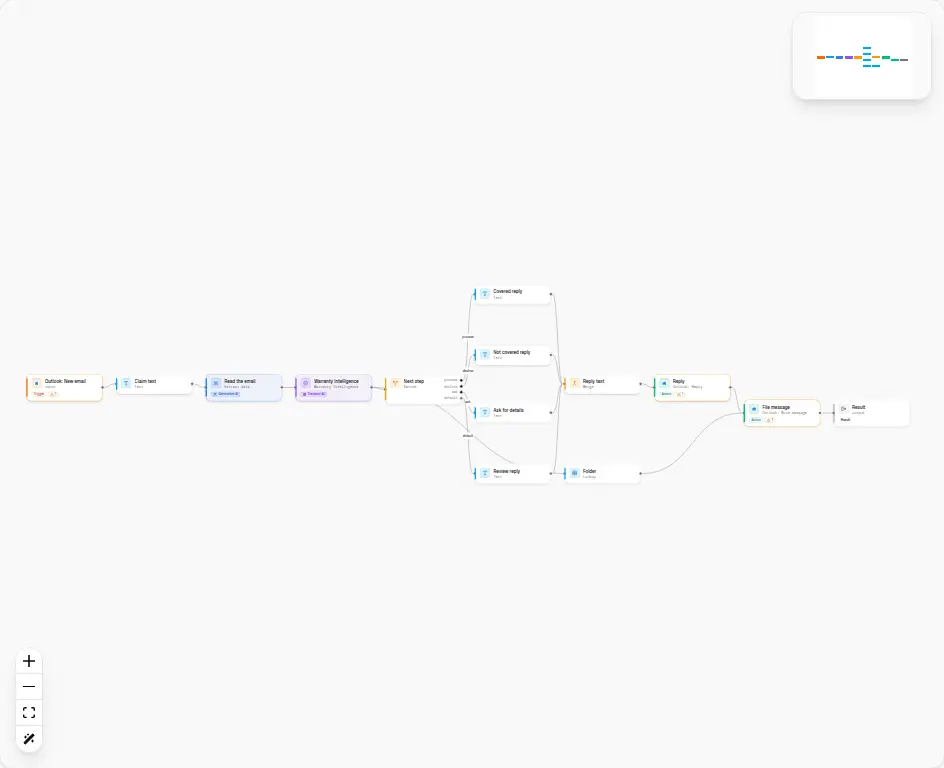 Outlook New email, Claim text, Read the email, Warranty Intelligence, then a switch into one reply, and File message.
| Step | Node | What it does |
|---|---|---|
| Input | Outlook: New email (outlook/new_email) | Starts the workflow. The event fields are message_id, subject, preview, from, received_at, conversation_id, web_link, has_attachments, and event_type. |
| Claim text | Text | Builds the claim from the subject and the preview. |
| Read the email | Generative AI (Extract data) | Copies purchase_date, receipt_stated, and model_number only when the email states them. |
| Warranty Intelligence | Decision AI | Checks that claim against the warranty terms stored on the node. Returns coverage_status, recommended_action, and the other fields below. |
| Next step | Switch | Routes on recommended_action: process, decline, ask, or default. |
| Covered reply | Text | The reply for process_claim and troubleshoot. |
| Not covered reply | Text | The reply for inform_not_covered. |
| Ask for details | Text | The reply for request_information. |
| Review reply | Text | The reply for everything else, including manual_review. |
| Reply text | Merge | Keeps the one reply that ran. |
| Reply | Outlook Reply (action:outlook/reply@1) | Sends that text as a reply to the message. Sent once. |
| Folder | Lookup | Picks a destination folder id from recommended_action. |
| File message | Outlook Move message (action:outlook/move_message@1) | Moves the message to that folder. Safe to retry. |
| Output | Output | Returns the decision, the route, the reply, and whether the reply and the move ran. |
New email does not include a purchase date, a product record, or the rest of the message. preview is the first part of the body, about the first 255 characters, as plain text. Warranty Intelligence reads Claim text, which is the subject plus that preview. It does not see anything past the preview.
Build it in the Studio
1Start from the template
Click Use this template above, or open Outlook warranty claims in Workflows.
The draft opens on the canvas. The components library is on the left. Triggers, AI Nodes, Logic, and Actions are the four groups. Outlook is under Triggers and under Actions.
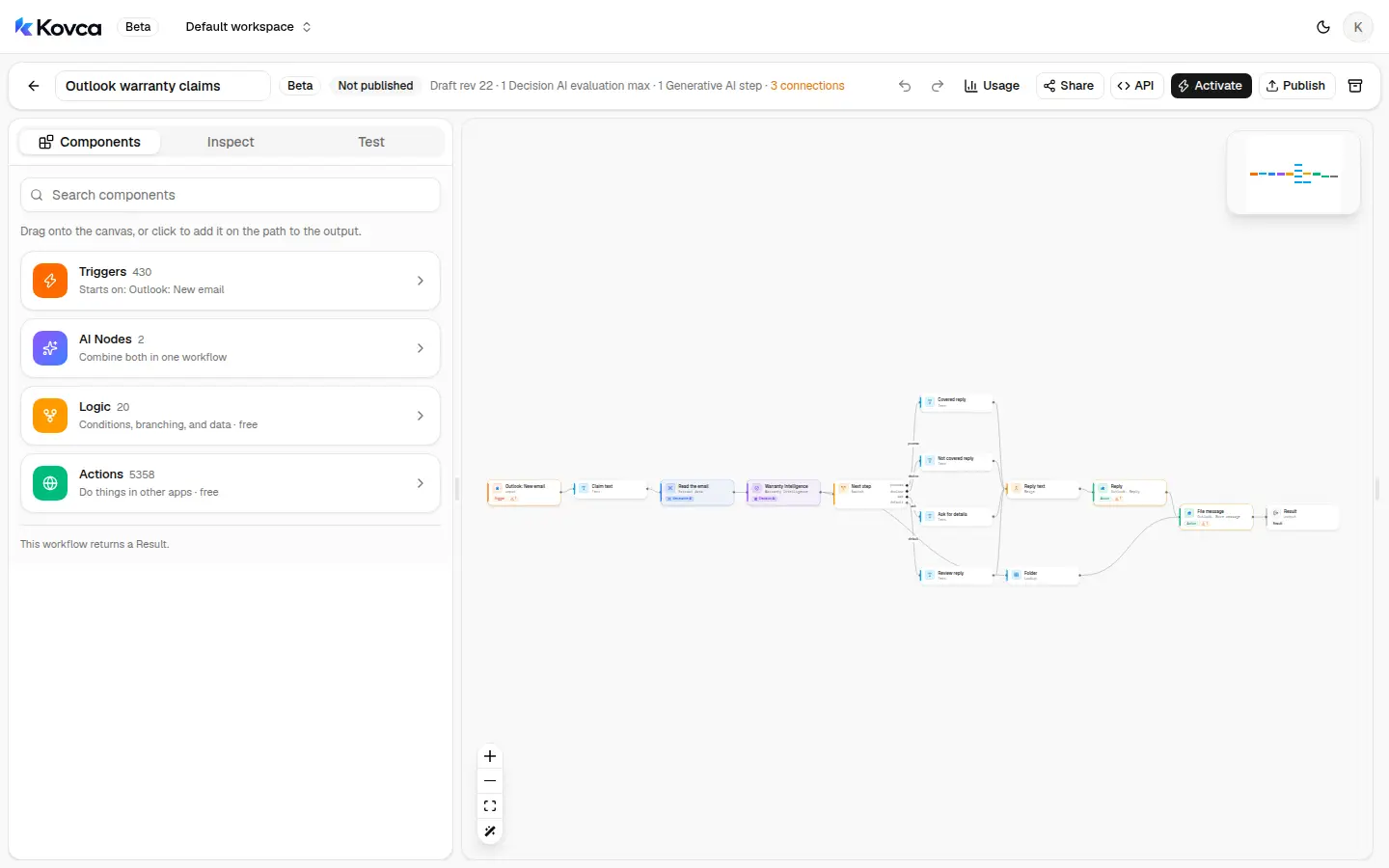 The library home. Outlook is inside Triggers and Actions.
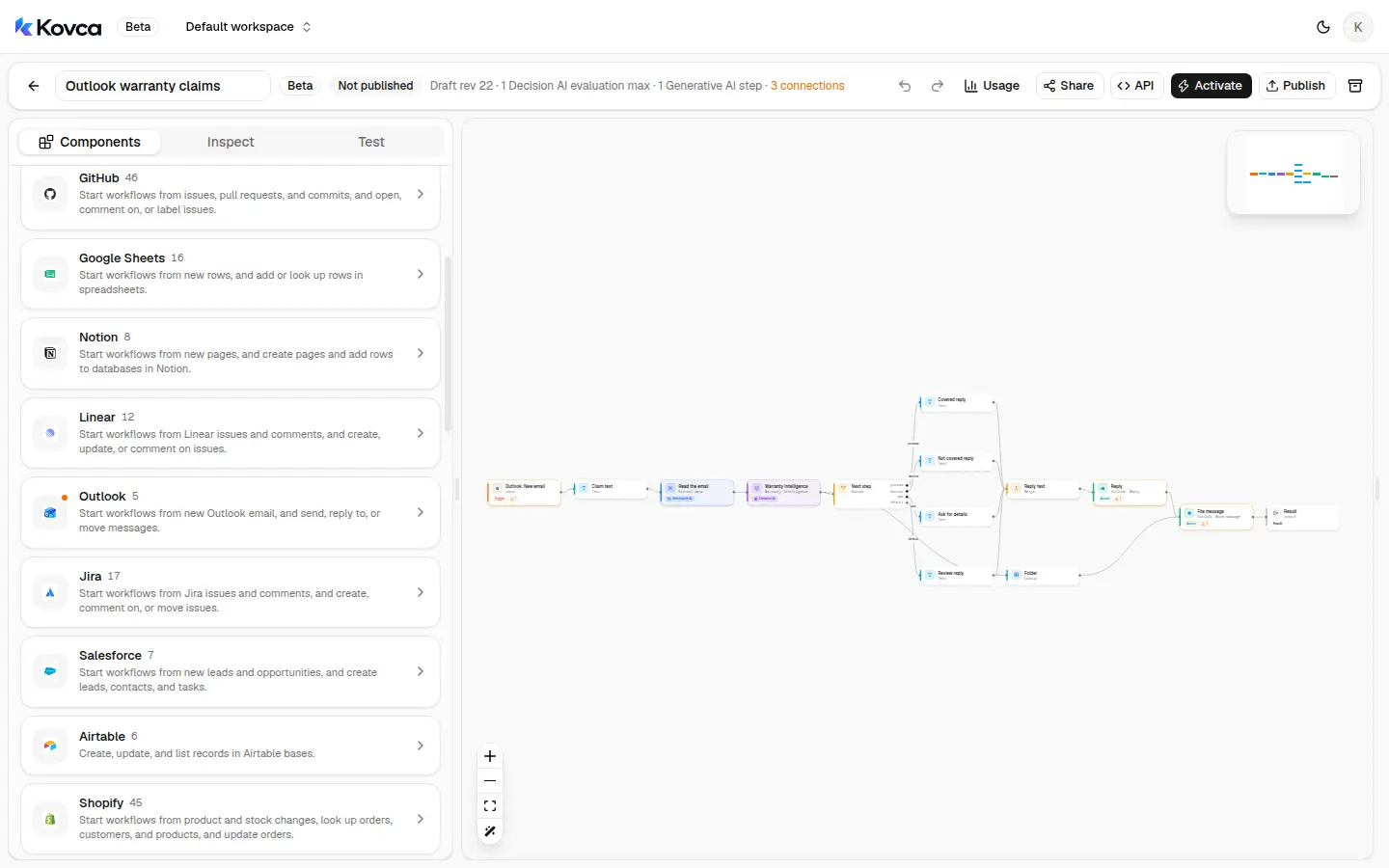 Outlook is one app in the trigger list. New email is its trigger.
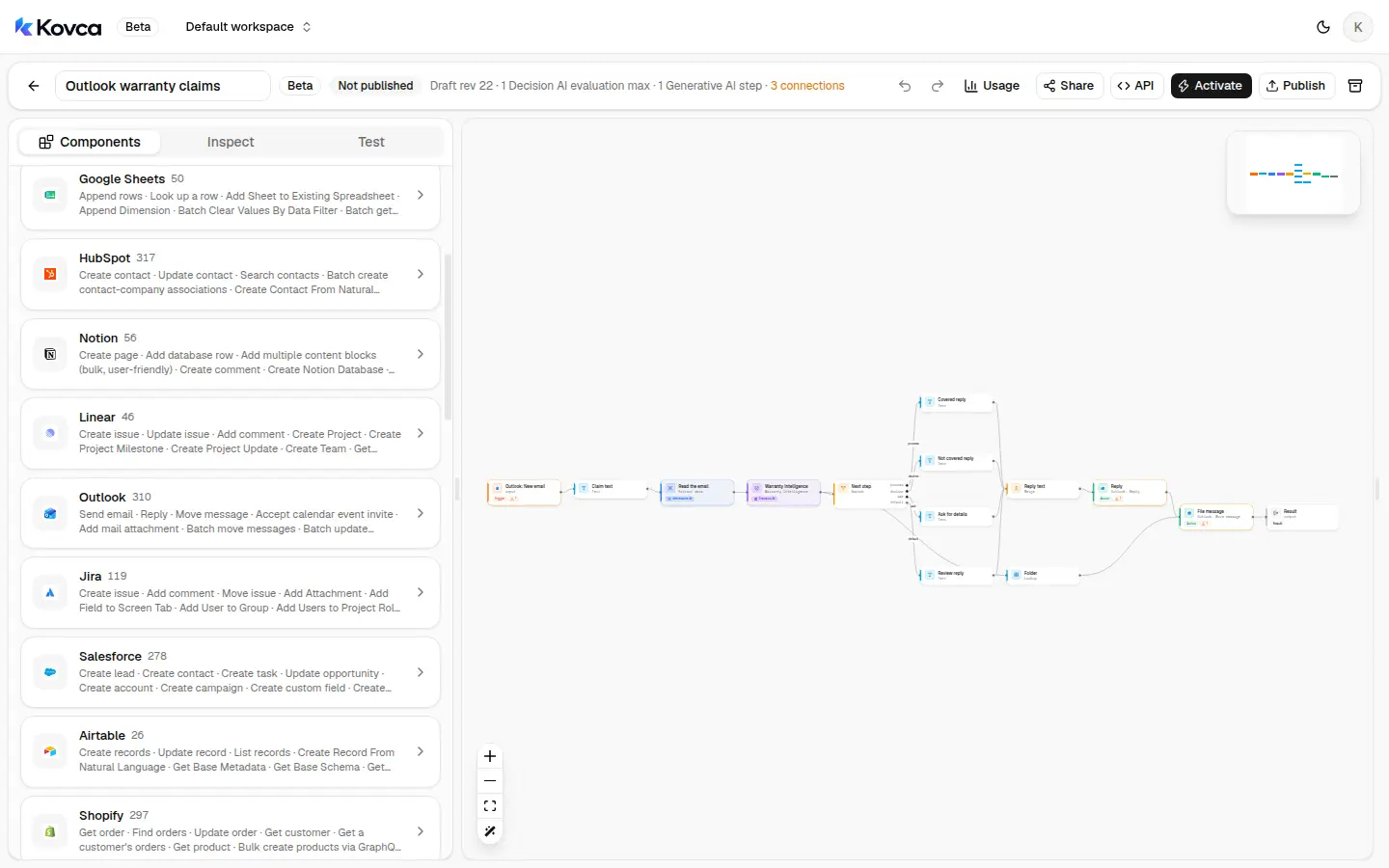 Outlook's actions include Reply and Move message, next to the other apps.
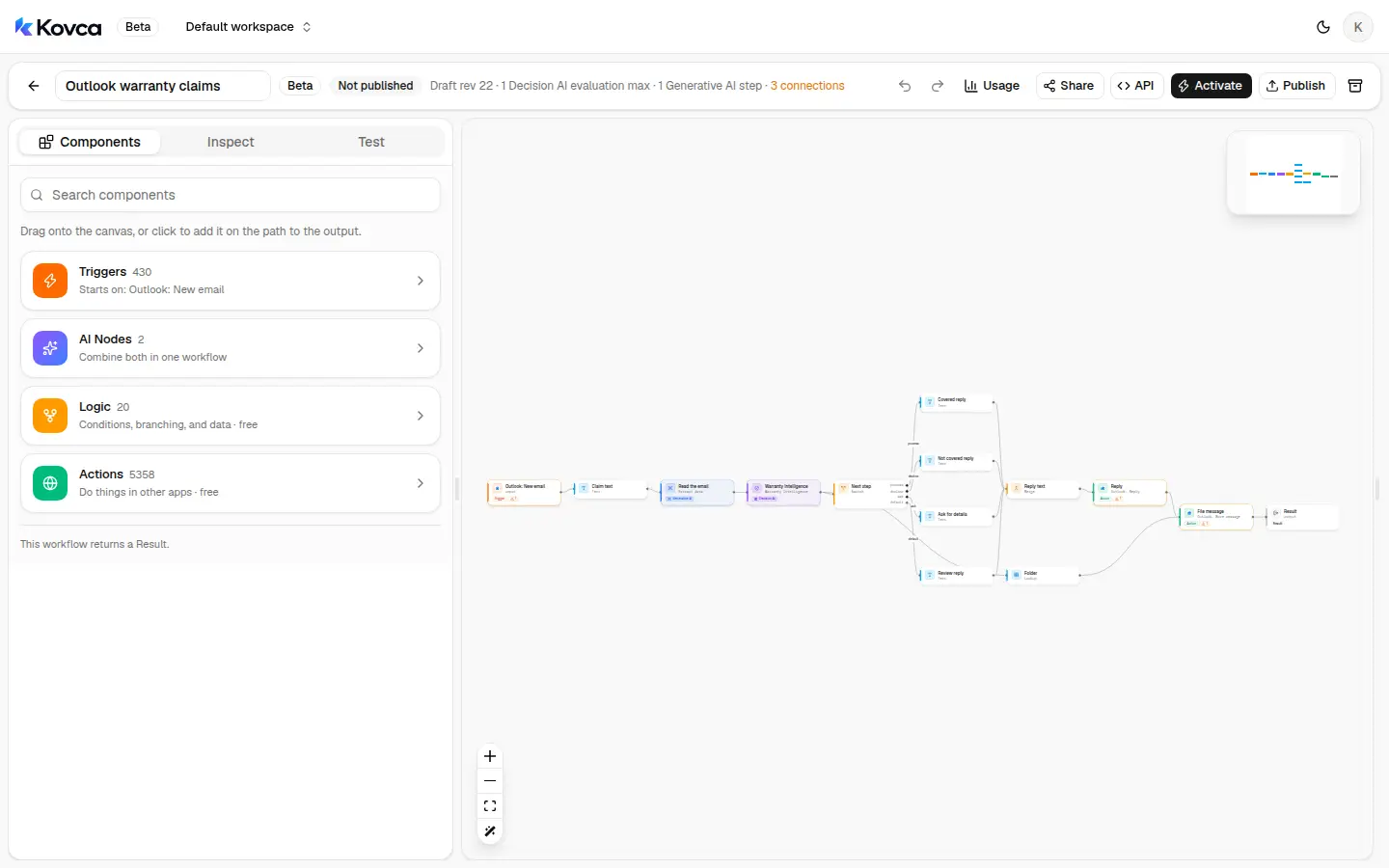 The draft is not callable until you publish and activate it. The Outlook account is still to choose.
2The workflow starts from a new email
Select the input step. It is Outlook · New email, not an API request. The account line is empty until you connect Outlook. Leave it empty while you test.
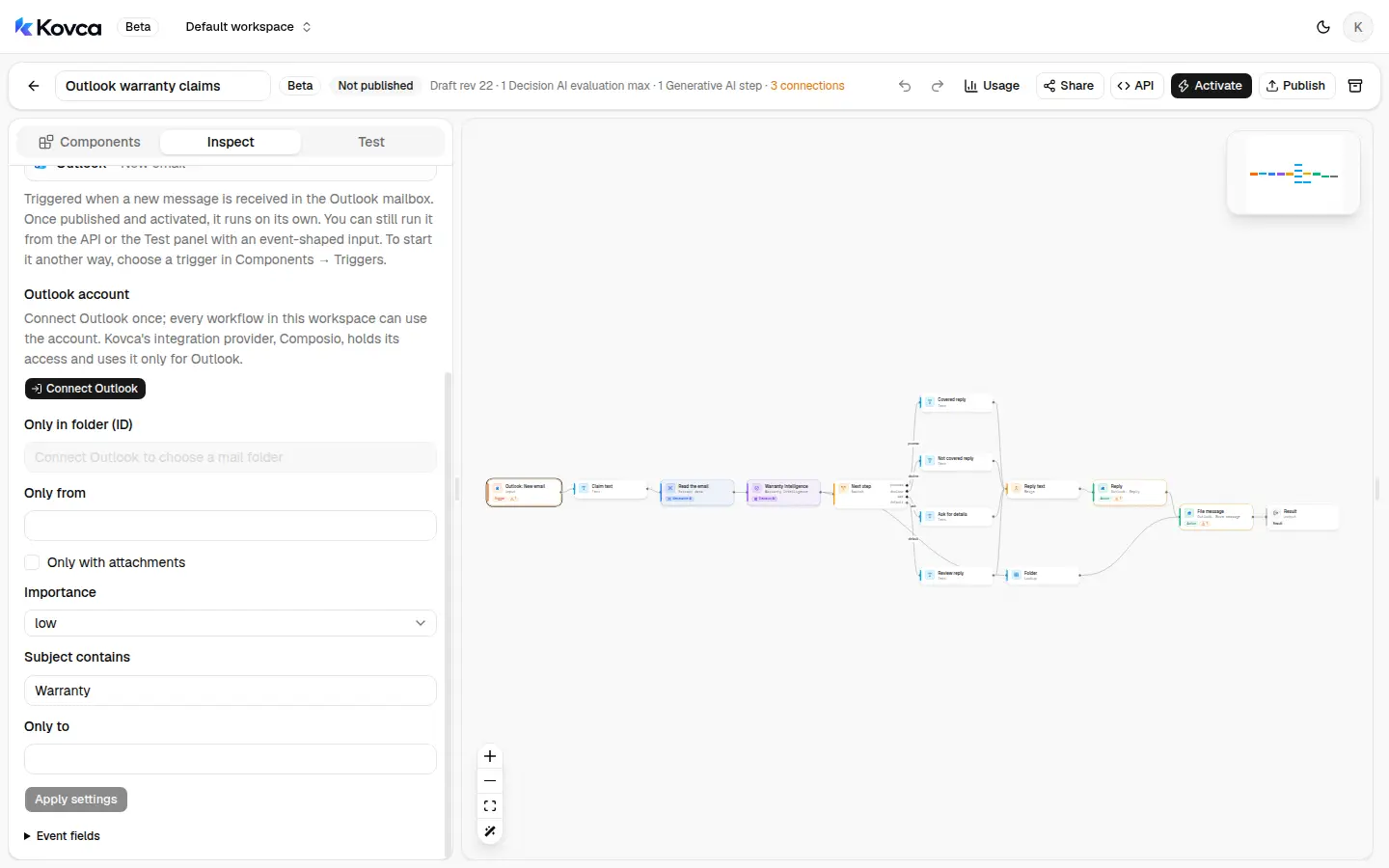 Subject contains is Warranty. No Outlook account is selected.
The template sets Subject contains (subject_contains) to Warranty. A live message whose subject does not contain that text does not start a run. Change it to the word your warranty subjects actually use. The Test tab and an API call send the event you provide, so they still run when the subject would not have matched.
The other settings are optional, and the template leaves them unset:
| Setting | What it filters |
|---|---|
Only in folder (ID) (folder_id) | Only messages in that Outlook folder. Once an account is connected, the field lists the mailbox's folders. |
Only from (from_email) | Only messages sent from this address. |
Only to (to_email) | Only messages addressed to this address on the To line. |
Only with attachments (has_attachments) | true for messages with attachments, false for messages without them. |
Importance (importance) | low, normal, or high. |
The Importance menu shows low until you choose a value and apply it. The template does not apply one, so it does not limit mail to low importance. Use Subject contains, or Only in folder, to keep sales and support mail from starting a run. This trigger does not take a label.
Event fields later steps read:
| Field | Used for |
|---|---|
input.subject | Claim text, the product name, and every reply |
input.preview | Claim text, and Read the email |
input.message_id | Reply's Message ID, and File message's Message ID |
The event also includes from, received_at, conversation_id, web_link, has_attachments, and event_type. from is a JSON object, not an email address. This workflow does not read it: Reply uses the message id. A manual run or an API call can omit fields the steps don't read. product.name is required and is mapped from the subject, and it accepts at most 200 characters, so a subject longer than that is refused. A message with an empty subject fails Warranty Intelligence for the same reason.
The same message does not start two runs: the event id is message_id. A later message is a new event and runs again, including a customer's reply whose subject still contains Warranty.
3Write the claim the node reads
Select Claim text. It builds Warranty Intelligence's claim_description from the subject and the preview.
Subject: {{input.subject}}

{{input.preview}}4Copy a date only when the email states one
Select Read the email. It is Extract data. The instructions tell it to copy three fields from the subject and the preview, and to leave a field out when the email does not state it:
purchase_date, only when the email states a calendar date, written asYYYY-MM-DD. A phrase such as "last June" is left out. The field accepts at most 10 characters, which is the length of that date.receipt_stated, true only when the email says a receipt, invoice, or other proof of purchase is included or attached. Otherwise it is left out. An attachment is not treated as proof on its own:has_attachmentscan be a photo of the product.model_number, when the email names one. At most 100 characters.
A date in any other shape fails the Warranty Intelligence step, because purchase_date has to be YYYY-MM-DD. Leaving the field out is what sends the claim down the ask path.
5Put your warranty terms in
Select Warranty Intelligence. The claim comes from Claim text. The product name is the subject. The model number, purchase date, and proof flag come from Read the email when those fields are present. When Read the email leaves one out, that input is left unset. The terms are a fixed value:
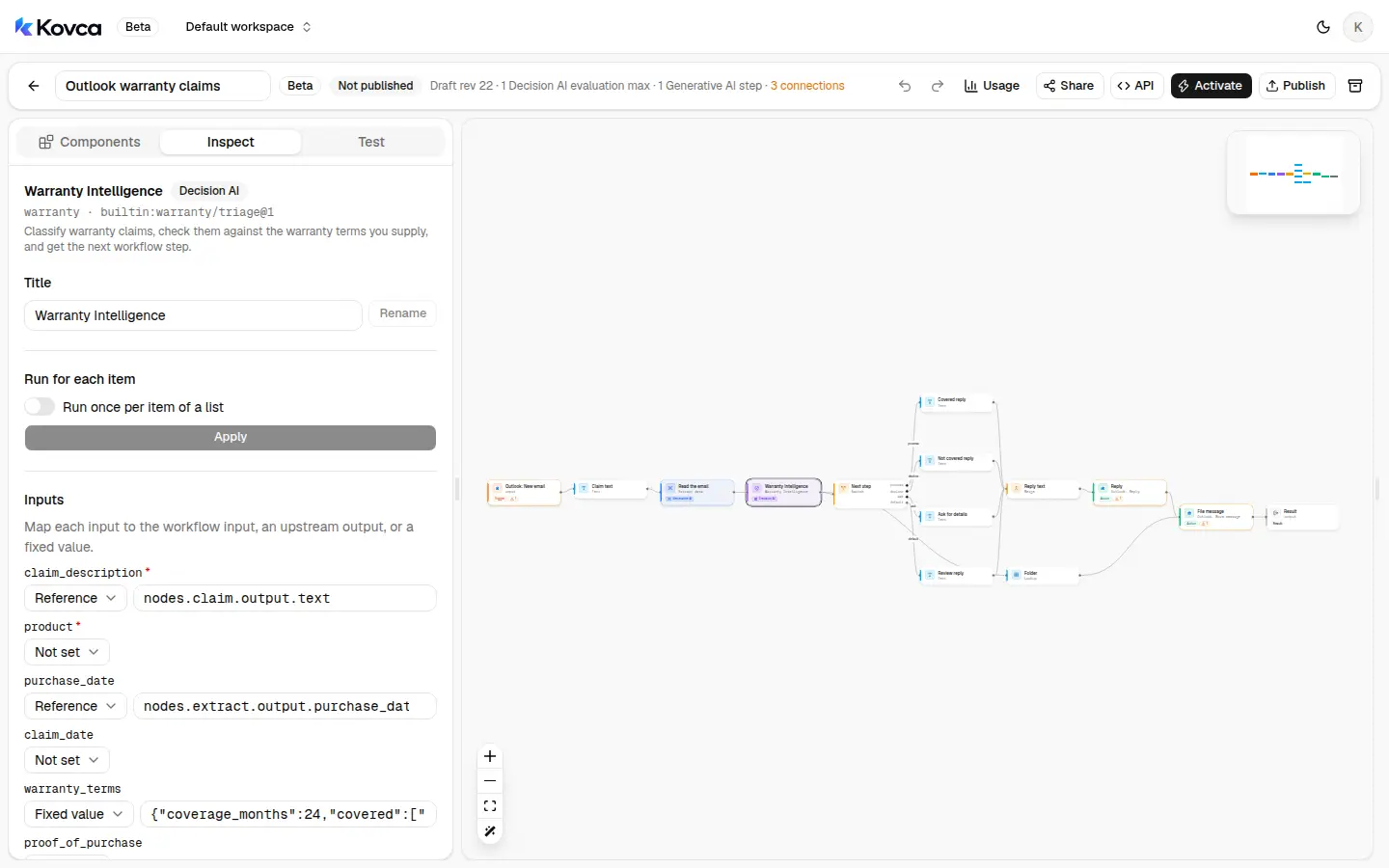 claim_description comes from Claim text. The warranty terms are a fixed value. The product name is the subject.
{
  "coverage_months": 24,
  "covered": ["Defects in materials and workmanship under normal use"],
  "exclusions": ["Damage caused by drops, impacts, or liquid", "Normal wear and tear, including cosmetic wear"],
  "requires_proof_of_purchase": true
}
Rewrite the terms in your own words. coverage_months is a whole number from 1 to 600. covered and exclusions are lists of up to 20 items, each up to 300 characters. requires_proof_of_purchase is true or false.
claim_type is manufacturing_defect, premature_failure, accidental_damage, wear_and_tear, missing_components, performance_issue, or other.
coverage_status and recommended_action come from the terms and the dates:
- No
warranty_terms:not_evaluated, and the action ismanual_review. The template always sends terms, so this case is the one you get if you clear them. - No purchase date, or proof is required and was not provided:
insufficient_information, and the action isrequest_information. The template requires proof.receipt_statedhas to be true or this is the result, even when the date is inside the window. - The purchase date is outside the window:
not_covered, and the action isinform_not_covered. When you don't mapclaim_date, the window is checked against the day the run starts. The window is the purchase date pluscoverage_months. - A matching exclusion, conflicting details, an unclear claim, or a problem the covered list does not match:
requires_review, and the action ismanual_review. A matching exclusion does not by itself setnot_covered. - Otherwise the status is
covered. The action istroubleshootwhen the claim type isperformance_issue, andprocess_claimfor the other covered types.
priority is high when the claim describes a safety concern, low when the status is not_covered, and medium otherwise. requires_human_review is true when the status is requires_review or not_evaluated, or when the details conflict, the claim is unclear, or it describes a safety concern. A specific claim that is only missing a date can have requires_human_review false and still take the ask path. required_information lists what is missing: warranty_terms, purchase_date, proof_of_purchase, or claim_details.
6Decide the next step
Select Next step. The switch reads nodes.warranty.output.recommended_action and continues on the first matching case.
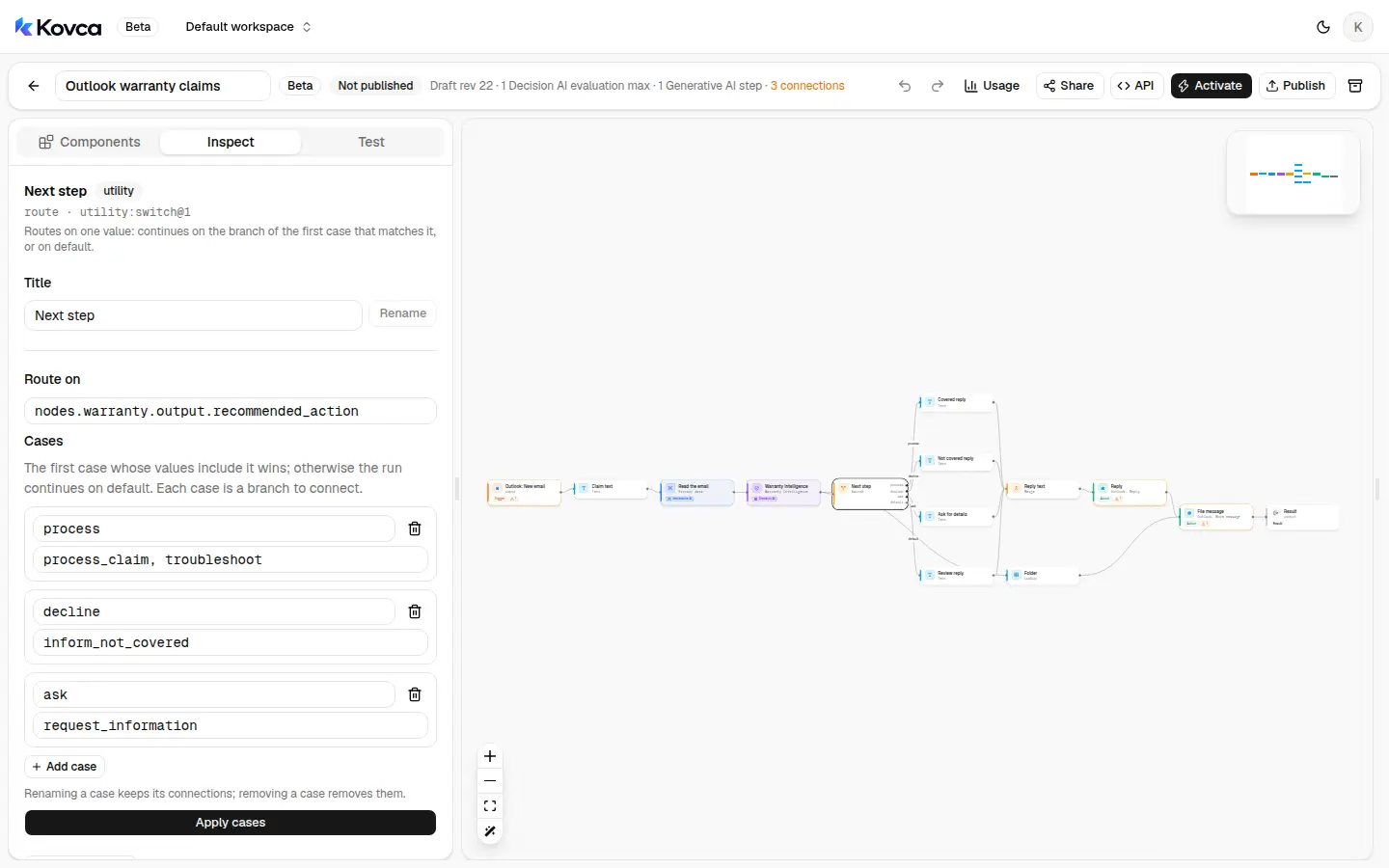 process_claim and troubleshoot go to Covered reply. inform_not_covered goes to Not covered reply. request_information goes to Ask for details. Everything else goes to Review reply.
| Case | Matches | Goes to |
|---|---|---|
process | process_claim, troubleshoot | Covered reply |
decline | inform_not_covered | Not covered reply |
ask | request_information | Ask for details |
default | everything else, including manual_review | Review reply |
7Reply with the text for that path
Each case has its own text step. Reply text keeps whichever one ran. Reply sends it.
Covered reply:
Thanks for writing in about {{input.subject}}. This claim is inside the warranty terms in this workflow, so we'll process it and follow up if we need anything else.Not covered reply:
Thanks for writing in about {{input.subject}}. The purchase date is outside the warranty period in this workflow, so this claim isn't covered. Reply if the date we should use is different.Ask for details:
Thanks for writing in about {{input.subject}}. To check this against the warranty, we still need the purchase date as YYYY-MM-DD and proof of purchase, such as a receipt. Reply to this email with those.Review reply:
Thanks for writing in about {{input.subject}}. A person on the warranty team will review this claim before we decide. You don't need to send anything else unless we write back.Reply is Outlook's Reply action. It is on the path from Reply text to File message.
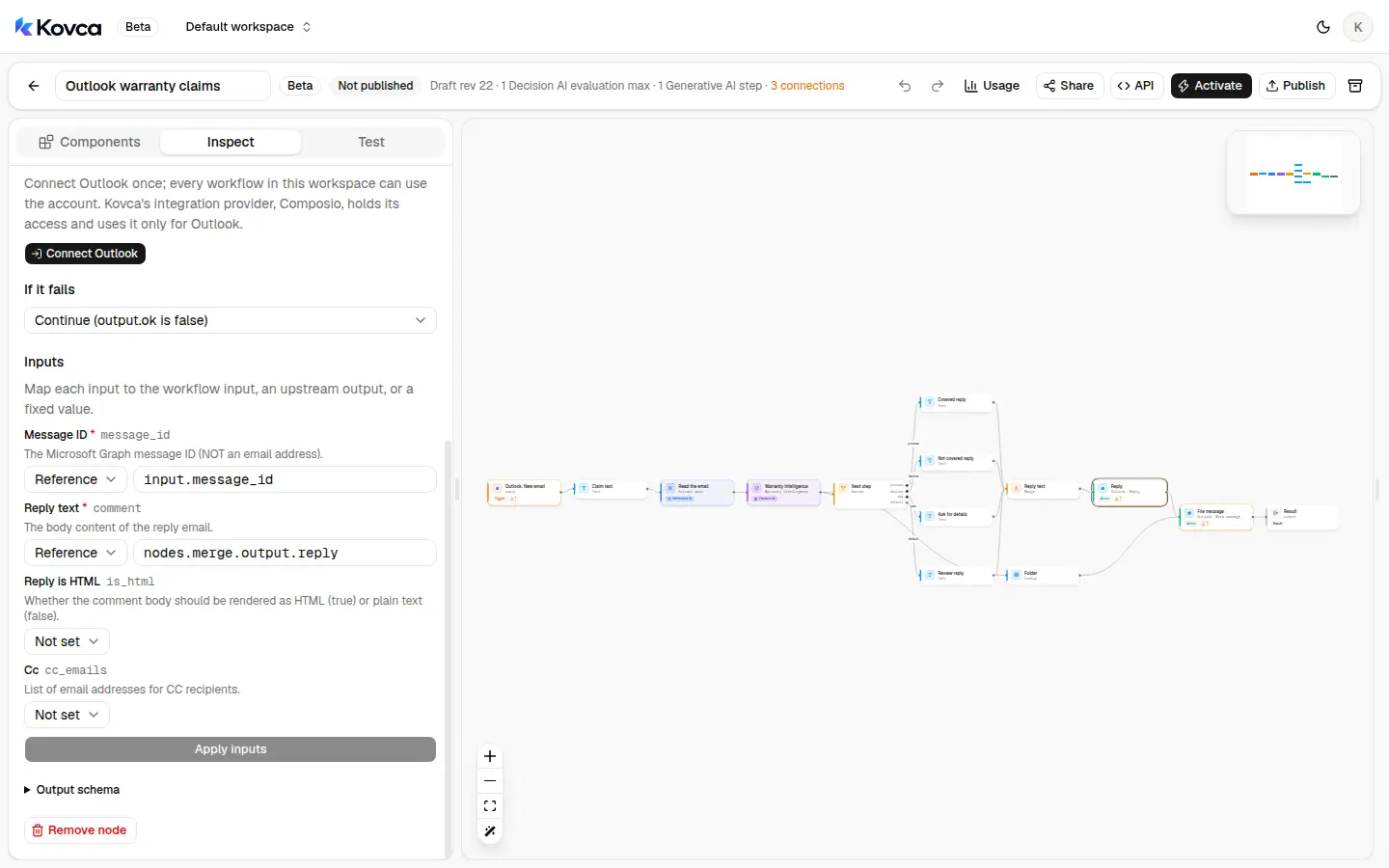 Message ID is input.message_id. Reply text comes from Reply text. If it fails, the run continues.
| Reply field | Value |
|---|---|
Message ID (message_id) | input.message_id |
Reply text (comment) | nodes.merge.output.reply |
Leave Reply is HTML unset, so the reply is plain text. If it fails is Continue (output.ok is false). If the reply does not go out, the run still files the message and still succeeds, with replied false. Reply is sent once: Kovca does not retry it on its own. Choose the Outlook account on this step before you activate. Studio tests simulate it and do not send mail.
8File the message
Folder reads recommended_action and returns the destination folder id File message uses.
| Recommended action | Folder id |
|---|---|
process_claim | folder-warranty-in-window |
troubleshoot | folder-warranty-in-window |
inform_not_covered | folder-warranty-closed |
request_information | folder-warranty-waiting |
manual_review | folder-warranty-review |
| anything else | folder-warranty-review |
Those ids are stand-ins. They are not Outlook folders. Replace each one with a folder id from your mailbox, or with a well-known folder name the action accepts: inbox, deleteditems, drafts, or sentitems. Only in folder on the trigger lists folders once an account is connected. File message's Folder ID is text: paste the id.
File message is Outlook's Move message action.
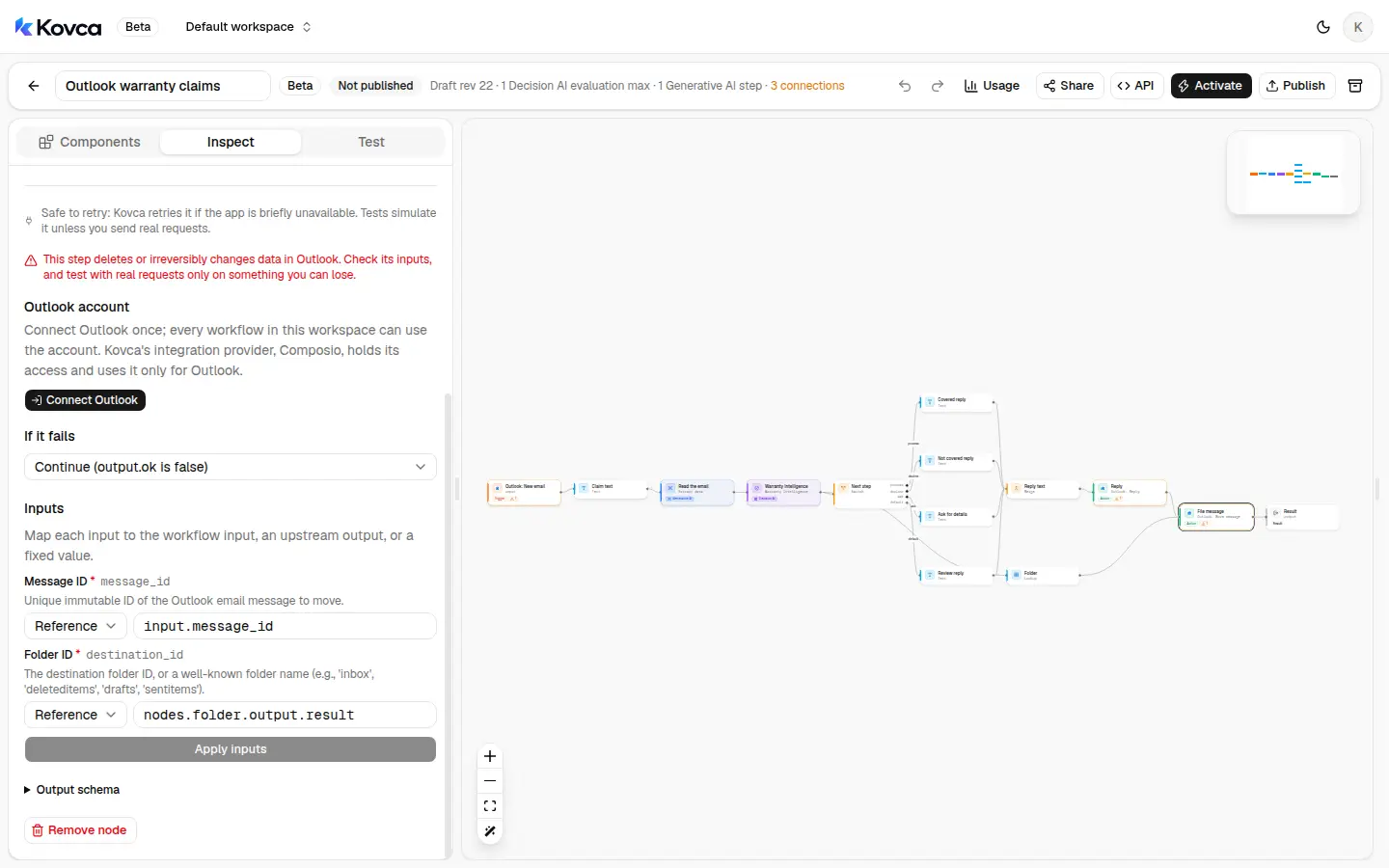 Message ID is input.message_id. Folder ID comes from Folder. The step warns that it changes data in Outlook.
| Move message field | Value |
|---|---|
Message ID (message_id) | input.message_id |
Folder ID (destination_id) | nodes.folder.output.result |
The Studio warns that this step deletes or irreversibly changes data in Outlook. Moving a message out of the inbox is that change. Test with real requests only on a message you can put back. The step is safe to retry: Kovca retries it if Outlook is briefly unavailable. If it fails is Continue (output.ok is false), so a missed move does not fail the run after the reply was attempted. moved is false when it does not run. Choose the same Outlook account.
9Test it
Open the Test tab. The template's examples are listed above the input. Leave Send real requests off. Reply and Move message return their samples. Nothing is sent or moved.
Run Cracked handle for a claim that describes a cracked handle and does not state a purchase date or a receipt. Run Registration question for a shorter note that asks how to register a warranty. With no purchase date, Warranty Intelligence returns request_information and the switch takes ask. Ask for details, Reply, and File message run. The other three reply texts are skipped. The message is filed to folder-warranty-waiting in the simulated result.
Before you activate, run a stack of real warranty emails, including ones inside the window, ones outside it, ones that are missing a date, and ones an exclusion should catch. When the routes look right, turn on Send real requests once, with the Outlook account chosen and the folder ids replaced, to check the reply and the move.
Publish, call it, and activate it
The same workflow can be called over the API. The body uses the trigger's field names. Create an API key under API keys and keep it on your backend.
curl https://kovca.io/api/v1/workflows/wf_.../execute \
  -H "Authorization: Bearer $KOVCA_API_KEY" \
  -H "Content-Type: application/json" \
  -H "Idempotency-Key: AAMkAGI2THVSAAA=" \
  -d '{
    "input": {
      "message_id": "AAMkAGI2THVSAAA=",
      "subject": "Warranty claim: kettle handle cracked",
      "preview": "The handle cracked while I filled the kettle. It was never dropped.",
      "from": { "email_address": { "address": "buyer@example.com", "name": "Example sender" } },
      "received_at": "2026-11-02T14:03:00Z",
      "conversation_id": "AAQkAGI2TconvAAA=",
      "web_link": "https://outlook.office365.com/owa/?ItemID=AAMkAGI2THVSAAA%3D",
      "has_attachments": false,
      "event_type": "created"
    }
  }'
That message does not state a purchase date or a receipt, so the purchase date is missing and proof was not provided. The action is request_information and the route is ask. The reply below is Ask for details filled in from that subject. Reply and Move message return their samples, so replied and moved are true. The folder id is the template's stand-in for request_information. claim_type and priority below are one possible classification of that message. What those two are depends on the claim.
{
  "request_id": "req_...",
  "run_id": "run_...",
  "workflow": { "id": "wf_...", "version": 1 },
  "status": "succeeded",
  "output": {
    "coverage_status": "insufficient_information",
    "claim_type": "manufacturing_defect",
    "priority": "medium",
    "recommended_action": "request_information",
    "requires_human_review": false,
    "required_information": ["purchase_date", "proof_of_purchase"],
    "route": "ask",
    "reply": "Thanks for writing in about Warranty claim: kettle handle cracked. To check this against the warranty, we still need the purchase date as YYYY-MM-DD and proof of purchase, such as a receipt. Reply to this email with those.",
    "replied": true,
    "folder_id": "folder-warranty-waiting",
    "moved": true
  },
  "steps": [
    { "id": "input", "status": "succeeded" },
    { "id": "claim", "status": "succeeded" },
    { "id": "extract", "status": "succeeded" },
    { "id": "warranty", "status": "succeeded" },
    { "id": "route", "status": "succeeded" },
    { "id": "covered", "status": "skipped", "reason": "branch_not_taken" },
    { "id": "declined", "status": "skipped", "reason": "branch_not_taken" },
    { "id": "ask", "status": "succeeded" },
    { "id": "review", "status": "skipped", "reason": "branch_not_taken" },
    { "id": "merge", "status": "succeeded" },
    { "id": "reply", "status": "succeeded" },
    { "id": "folder", "status": "succeeded" },
    { "id": "move", "status": "succeeded" },
    { "id": "output", "status": "succeeded" }
  ],
  "evaluations": 1
}
Use the message id as the Idempotency-Key. A retry returns the original run instead of sending a second reply. Kovca does not store the message or the output, so keep the response from the first call. Values from steps that didn't run come back as null.
To run it from the mailbox, open Activate. The checklist is what's left: connect Outlook, choose that account on the trigger, on Reply, and on File message, and replace the stand-in folder ids. Publish & activate publishes the draft and starts it. The checklist's activate row runs on every new email whose subject contains the text you set. A live automation runs that pinned version. Later edits don't reach it until you choose Publish & update.
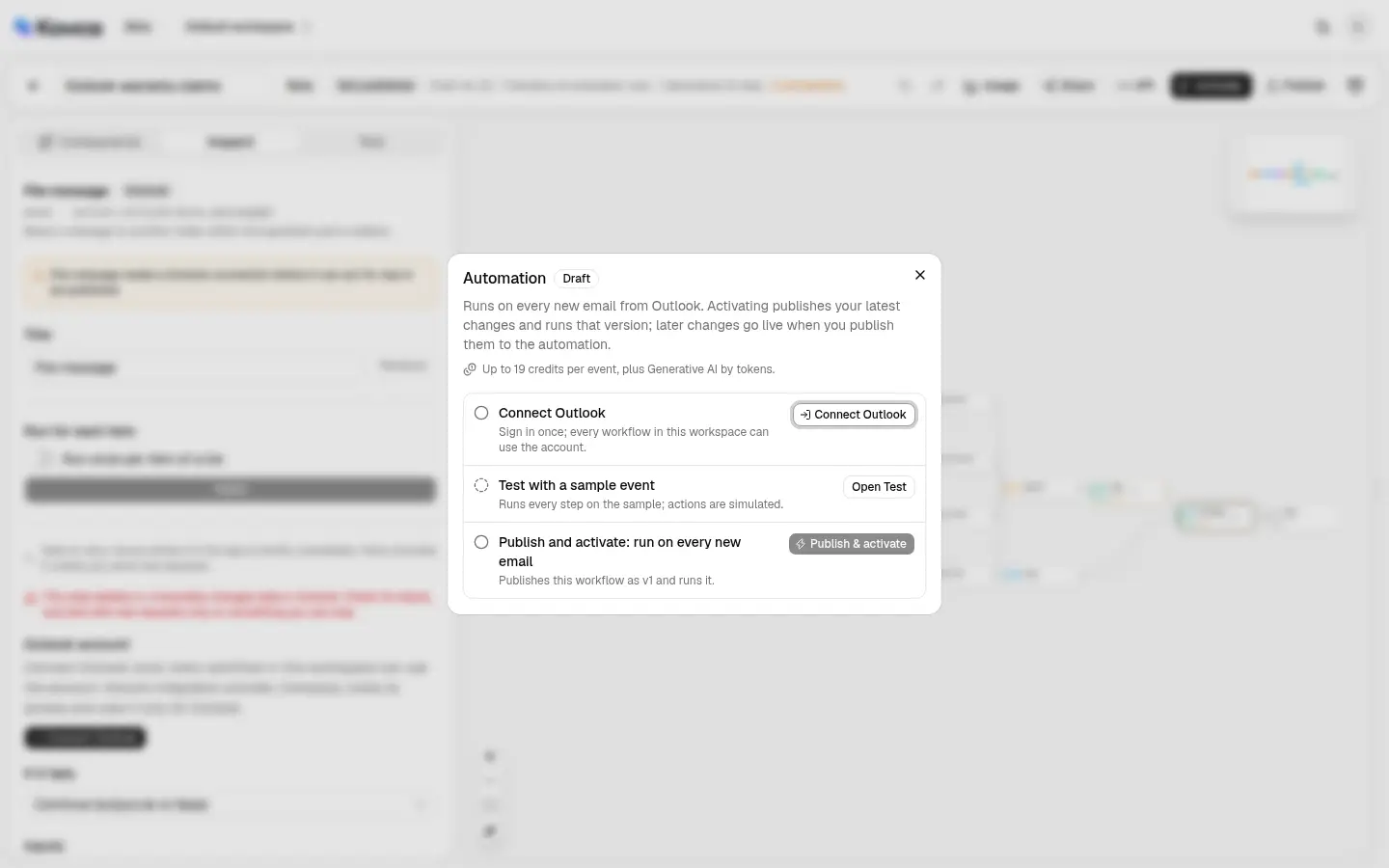 Connect Outlook is still to do. The panel shows up to 19 credits per event, plus Generative AI by tokens.
You sign in on Microsoft's page. The sign-in page names Composio, which holds the account access and uses it only for Outlook. Kovca keeps an ID for the account. Don't connect an account until the routes look right in the Test tab.
A new email that passes the trigger settings starts a run. Follow runs in Executions. While an automation is paused, messages that arrive are dropped. Kovca does not keep them to run later. A failed run is not retried on its own, because the reply or the move may already have happened.
If someone already reads the inbox
You don't need this if a person can read the warranty folder and the list is short. An Outlook rule that files matching subjects, and a shared note for who answers them, is a fair setup for a few claims a week.
What the workflow adds is the same warranty terms on every matching email, a reply that follows the recommended action, and a move into the folder for that action. You still have to replace the stand-in folder ids, choose the Outlook account, and read a sample of results before you activate it.
Make it yours
- Watch a folder instead of a subject. Set Only in folder to the folder warranty mail already lands in, and clear Subject contains if every message in that folder should run.
- Stop requiring a receipt. Set
requires_proof_of_purchaseto false. A claim with a purchase date inside the window can then becoveredwithoutreceipt_stated. - Use a shorter product name. The template maps
product.namefrom the subject, which is capped at 200 characters. Point it atnodes.extract.output.model_number, or at a fixed name, when the subject is the wrong text. - Leave a review in the inbox. Remove the
manual_reviewrow from Folder if those messages should stay put, or point that row atinbox. - Change it without surprising a live mailbox. Edit the draft and use Publish & update. The running version stays pinned until you do.
What it costs
Credits, and only for steps that succeed. Studio tests are free, and simulated actions are free.
- The run: 10 credits when an Outlook event starts it, 1 credit when the API starts it.
- Warranty Intelligence: 5 credits.
- Read the email: a Generative AI step, billed from the size of the call, at least 1 credit.
- Outlook Reply or Outlook Move message: 2 credits each, when that action runs for real.
The switch, text, lookup, and merge are free. A branch that doesn't run isn't charged. The Activate panel shows 19 credits per event, plus Generative AI by tokens. That 19 is the Outlook event, Warranty Intelligence, Reply, and File message. The response's credits field is the run's total. See billing, the workflows API, HTTP actions, and automations.